THE CONNECTED LEARNING PLATFORM
Arc
The original platform. In use.
Explore Arc's actual interfaces: administration and BI, instructor workspaces, student themes, live classrooms and curriculum building. Every capture uses fictional local data.
 Student ↗
Original application. Fictional demo data.↗ Screens open at full resolution
- MY ROLE
- Co-developer · platform & product engineering
- CONTEXT
- Two developers · my coworker and me
- TIMELINE
- Jan 2026 - now
- PROJECT STATUS
- Live · Continuously supported
THE IDEA, IN A MOMENT
Keep the learning connected.
Learning feels connected when the material, the classroom moment and the student’s work stay together. Arc gives each person a purposeful view of that same learning process.
Where I contributed
I build, support, and continually expand Arc with one coworker. My work spans typed application boundaries, permissions, realtime workflows, touch-friendly editors, and automated delivery checks.
Understand the program
See the program. Inspect the reasoning.
Move from program inventory and lesson activity to learning friction, operational indices and scoped review reports. The reporting cohort is fictional; these are the original application's calculations and displays.
The program behind the classroom.
Explore the original admin and scoped school analytics: inventory, nine friction lenses, an open calculation, modeled indices, a comparison gate and the work behind the numbers.
Read the walkthrough
- Inventory and activity
The original BI view separates all-time inventory from activity within the selected period. Every figure comes from fictional local fixtures.
- Nine friction lenses
Nine distinct lenses show different participation and workflow patterns. Labels and calculation controls remain visible in the original interface.
- Open the calculation
The native No-Show explanation opens. A close-up retains its formula, variables and concrete substitution: one qualifying run out of 25 gives 4%.
- Read modeled indices carefully
The 30-day modeled-index view includes five eligible peers. Its VRI calculation includes a fixed 0.8 assumption; these indices are not validated causal measurements of teaching quality.
- Respect the comparison gate
A separately loaded seven-day slice has no eligible peers. Arc retains absolute values and explicitly withholds a fair peer comparison; this differs from the 30-day view shown before it.
- Review queues and grade context
The scoped school analytics view displays review age, score distribution and a class-by-lesson grade matrix. A detail insert makes the matrix values readable.
- Follow lesson progression
Started, submitted and reviewed counts stay separate along the lesson sequence, followed by a weekly trend view. This is fictional history, not reported live program impact.
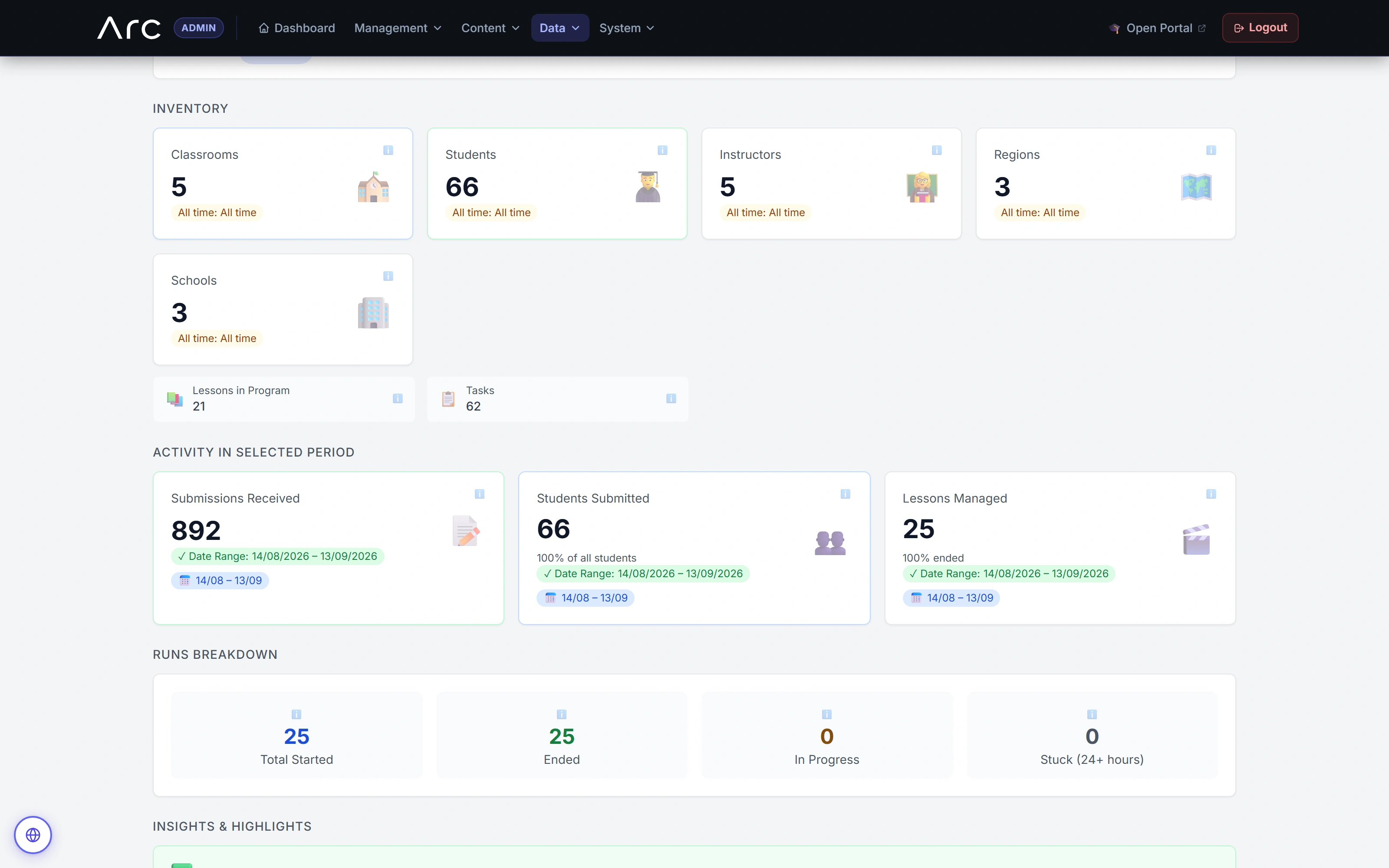
Inventory and activity, in context
The admin overview separates population inventory, period activity and lesson-run states.
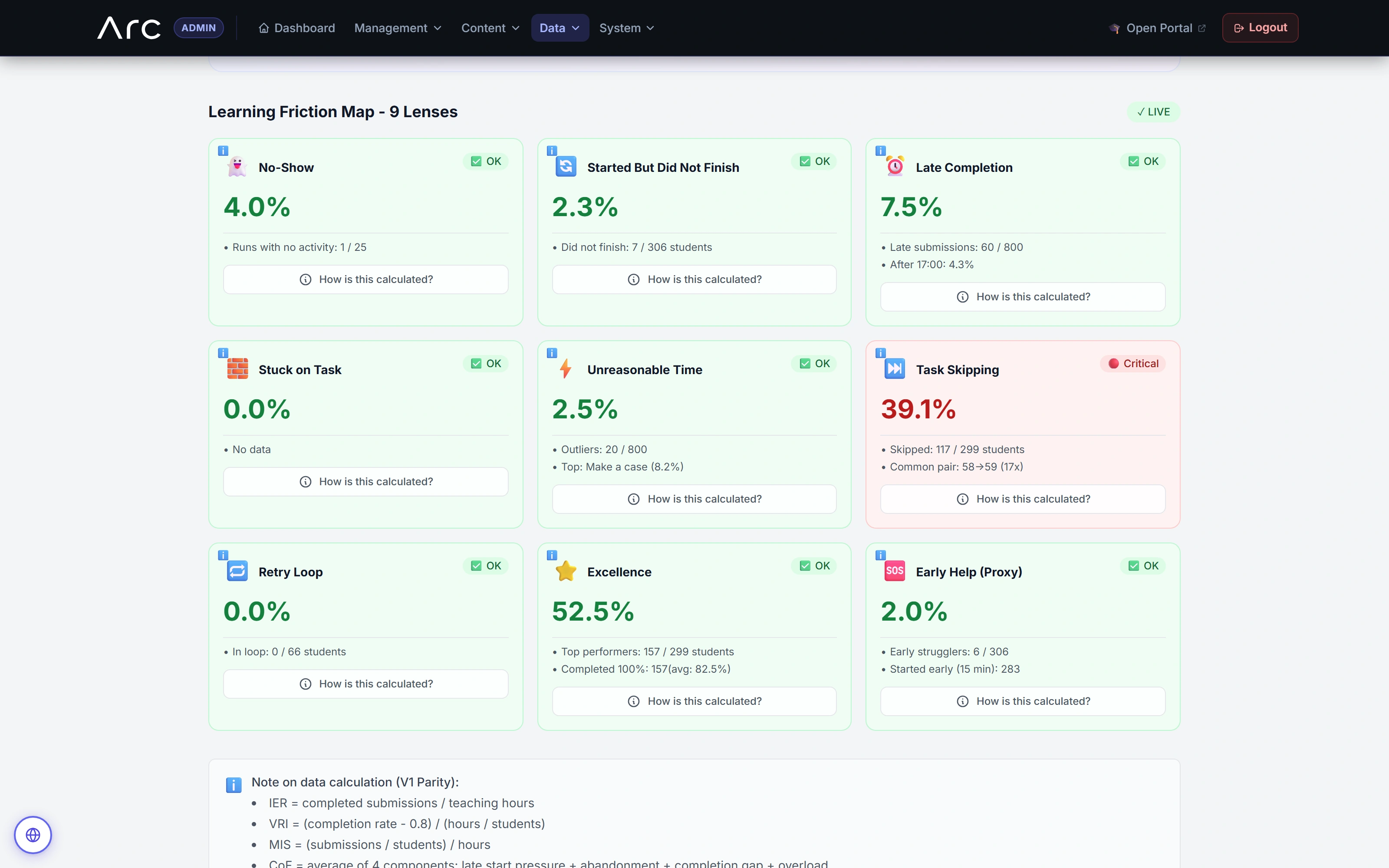
Nine ways to notice friction
The native lens cards show signals, denominators and calculation disclosures. Some denominators count learner-run pairs rather than unique learners.
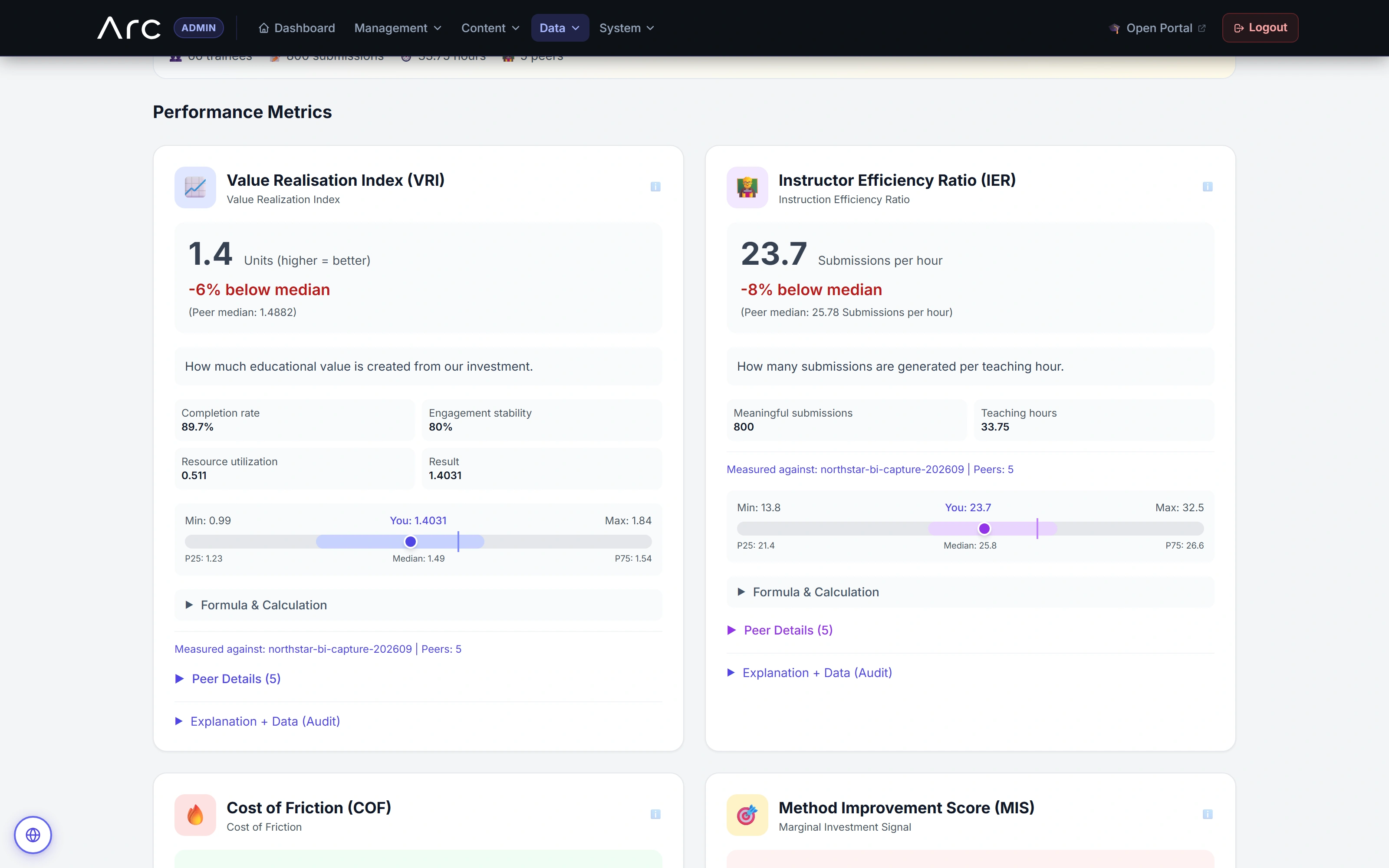
Inputs and peers beside the indices
The broader fictional cohort meets the comparison gates. VRI includes a fixed 0.8 stability assumption; these are modeled operational indices.
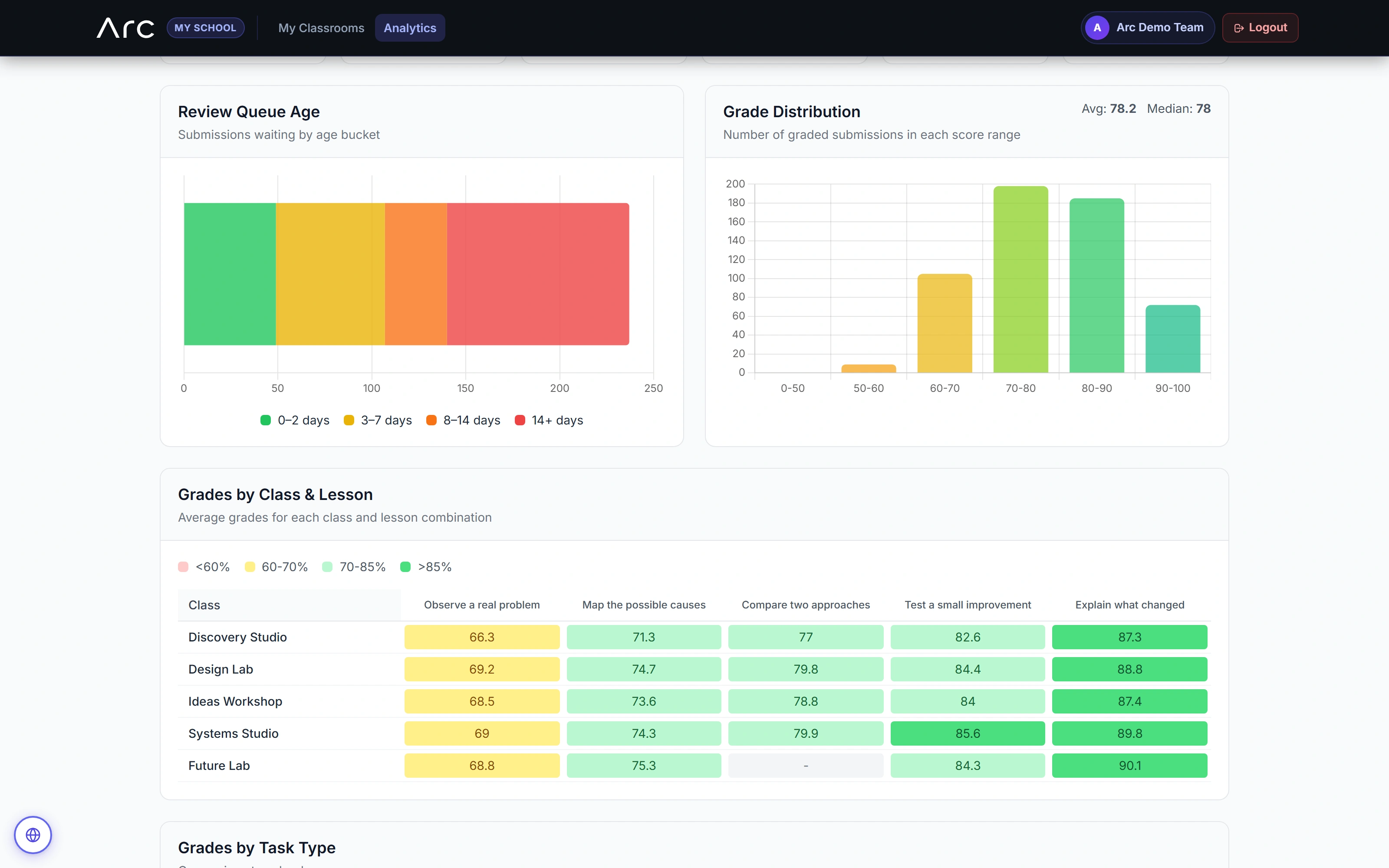
Understand the review workload
Queue age, grade distribution and a class-by-lesson heatmap show different parts of the feedback pipeline.
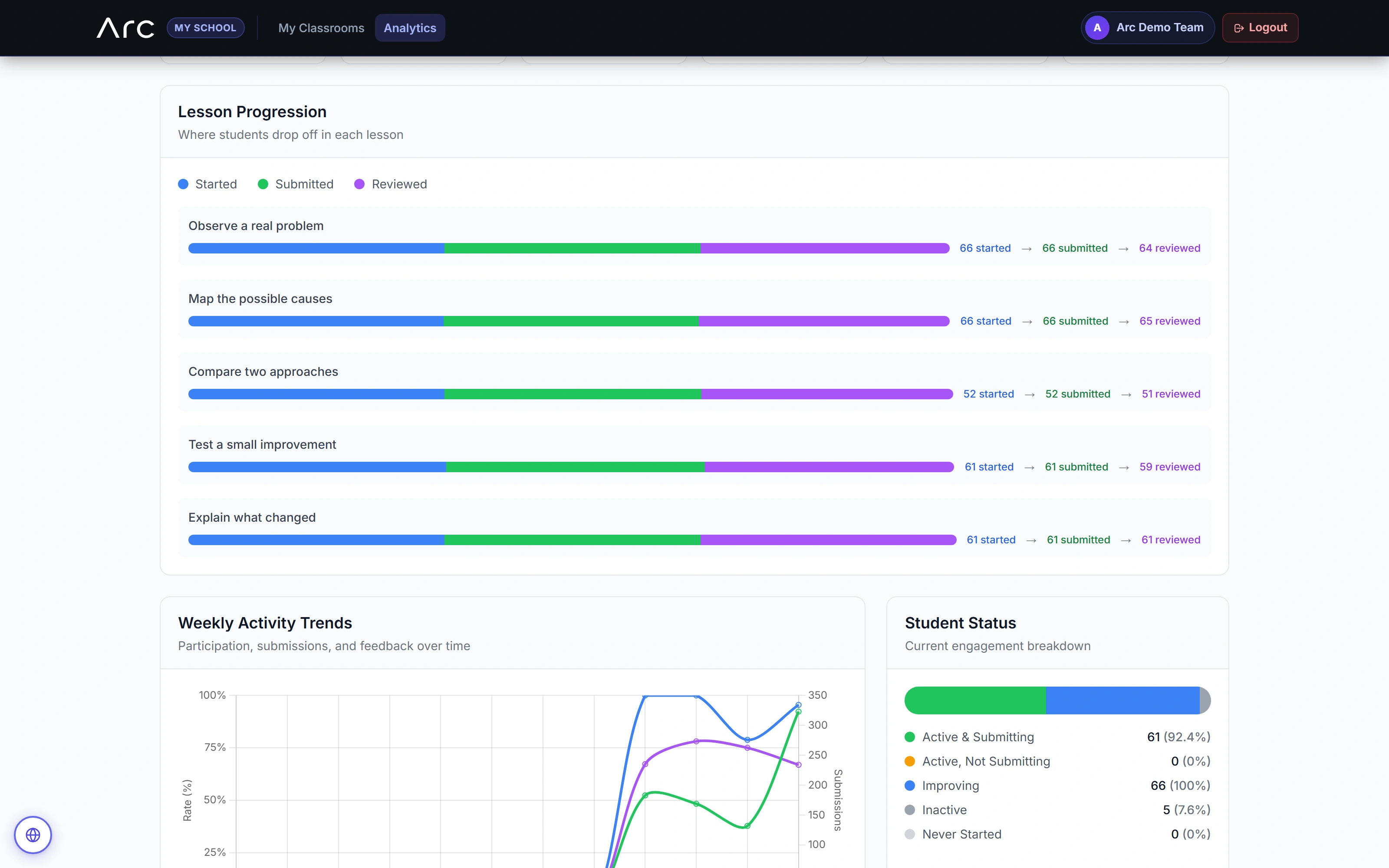
Follow the lesson through the work
Started, submitted and reviewed activity remains distinct in the lesson progression and weekly reporting views.
Teach with context
Keep the classroom within reach.
The instructor enters an assigned classroom and moves between learners, grades, statistics and the lesson tree. The same workspace connects what is taught to the work that comes back.
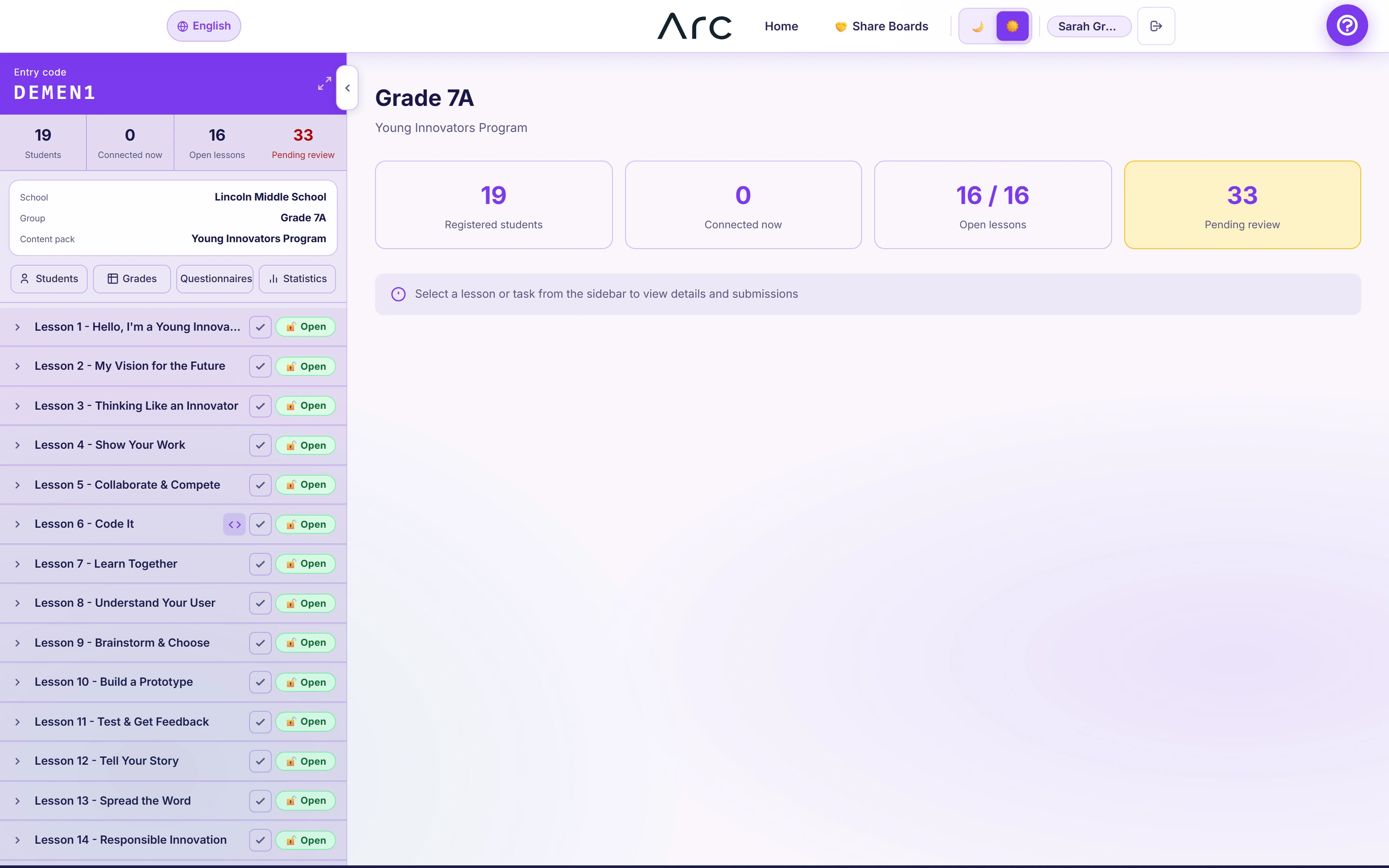
A classroom hub with a lesson tree
The sidebar keeps classroom context, learners, grades, questionnaires and statistics beside the selected lesson panel.
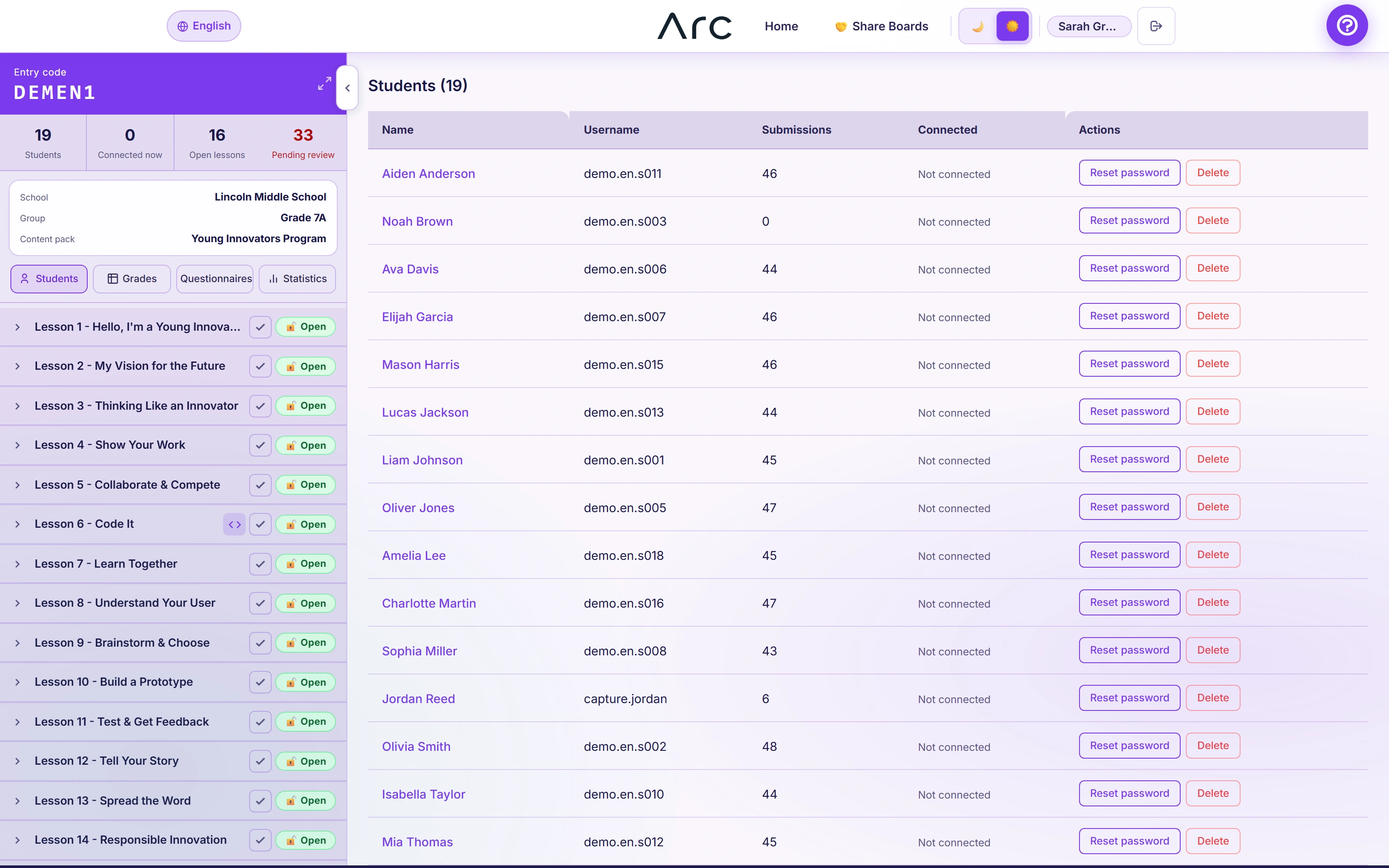
The people inside the classroom
The learner panel sits inside the classroom hub. All names and records in this capture are fictional.
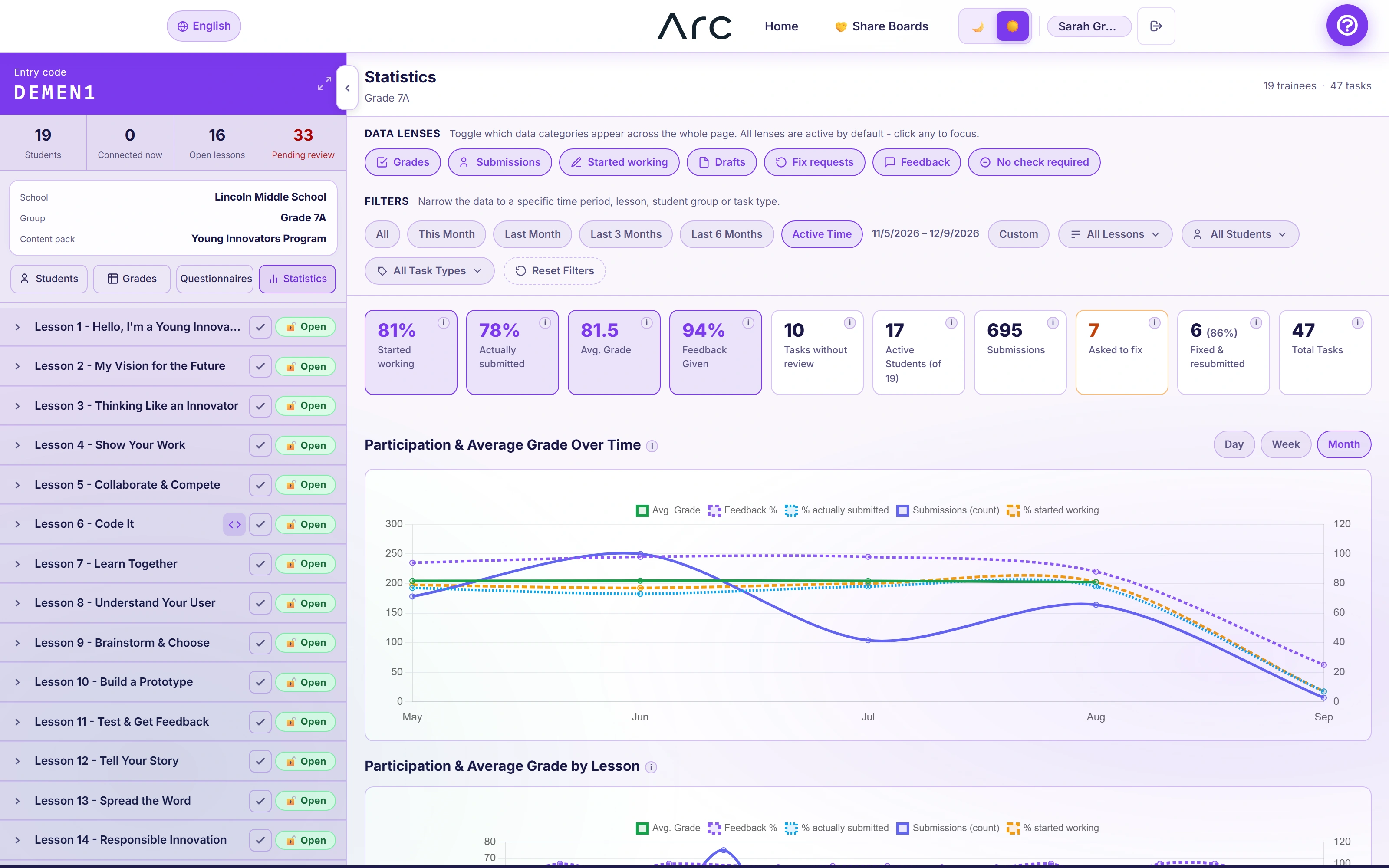
Learning activity with multiple perspectives
Data lenses and filters connect participation, submitted work, feedback and revision patterns over time.
Learn by doing
Make the learning feel like yours.
Space, Magic Forest and Neon Hacker change the atmosphere around the same learning pathway. Inside it, students make diagrams, connect ideas and submit work that stays inspectable.
A world to learn in.
Three student themes lead into a matching activity, from visible connections to a submitted result.
Read the walkthrough
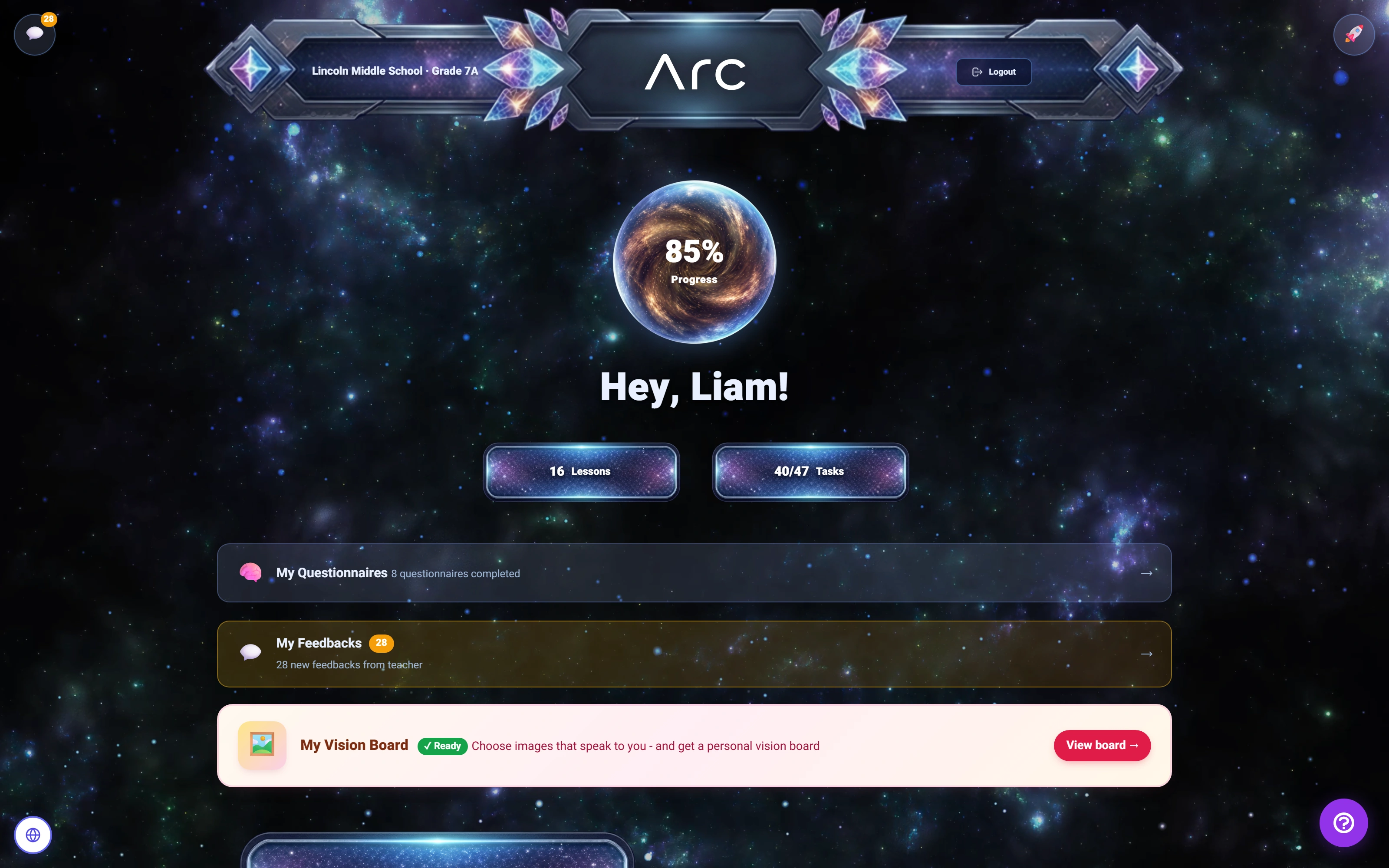
- Choose a learning world
Space, Magic Forest and Neon Hacker are real, persisted student preferences.
- Solve a visual activity
The student completes the remaining three pairs using the native matching controls.
- Submit the result
Arc accepts the matching submission and displays its submitted state. The stored score was checked separately.
- Review a saved version
The native locked-version view displays the six stored pairs.
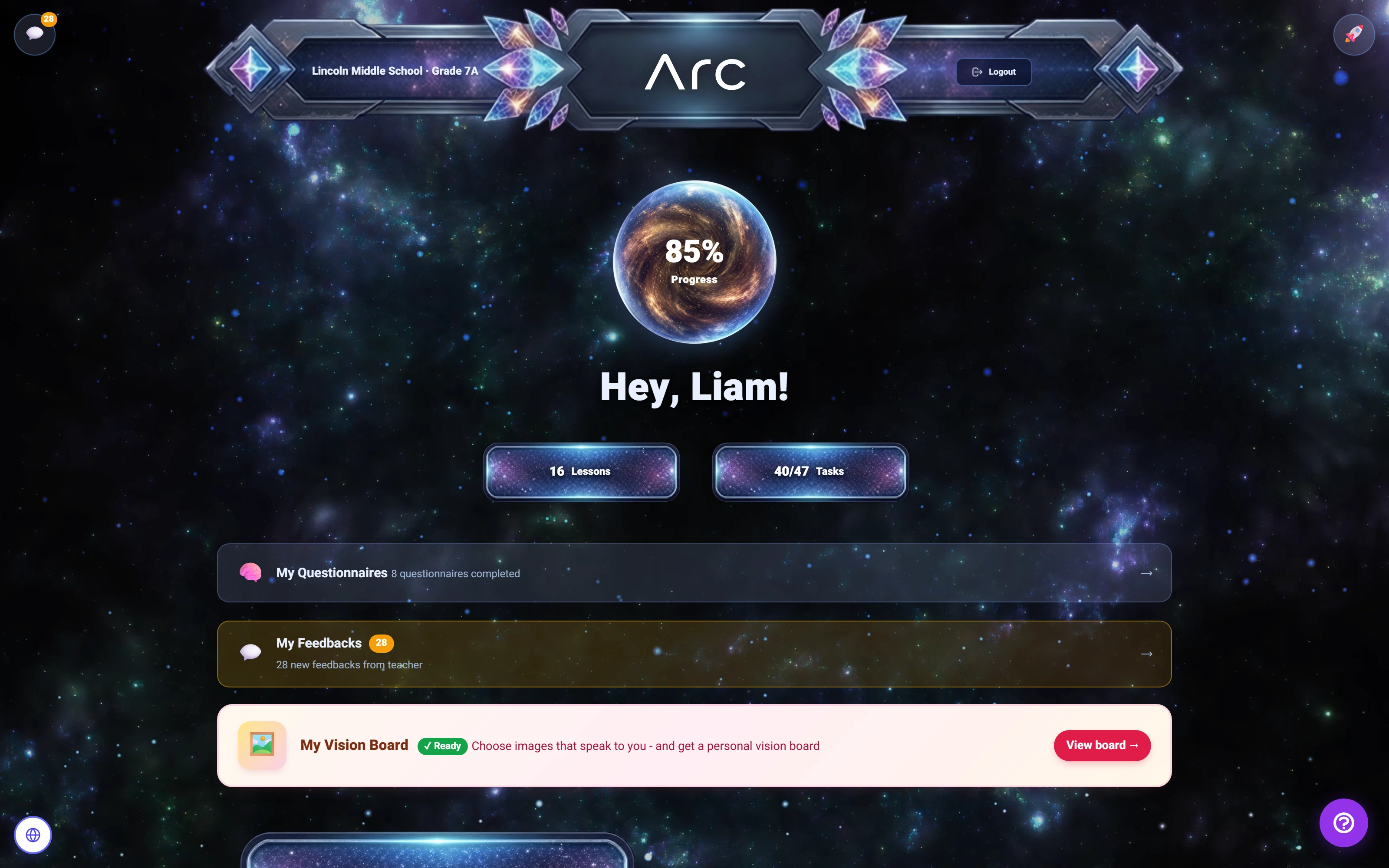
A learning world in Space
The same student pathway, with a space-themed environment and a visible progress summary.
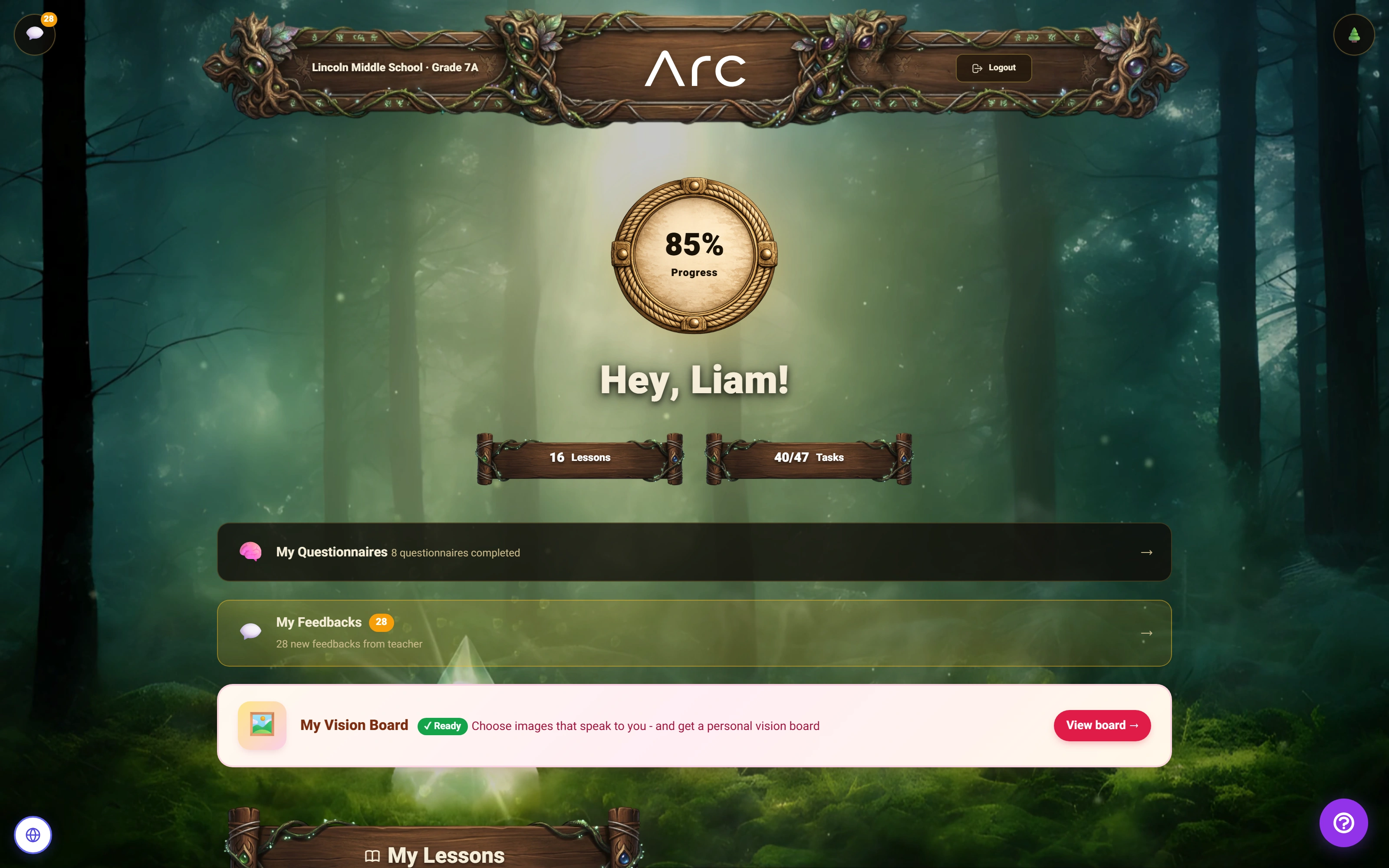
A different world for the same learner
Magic Forest changes the surrounding environment, navigation and progress treatment.
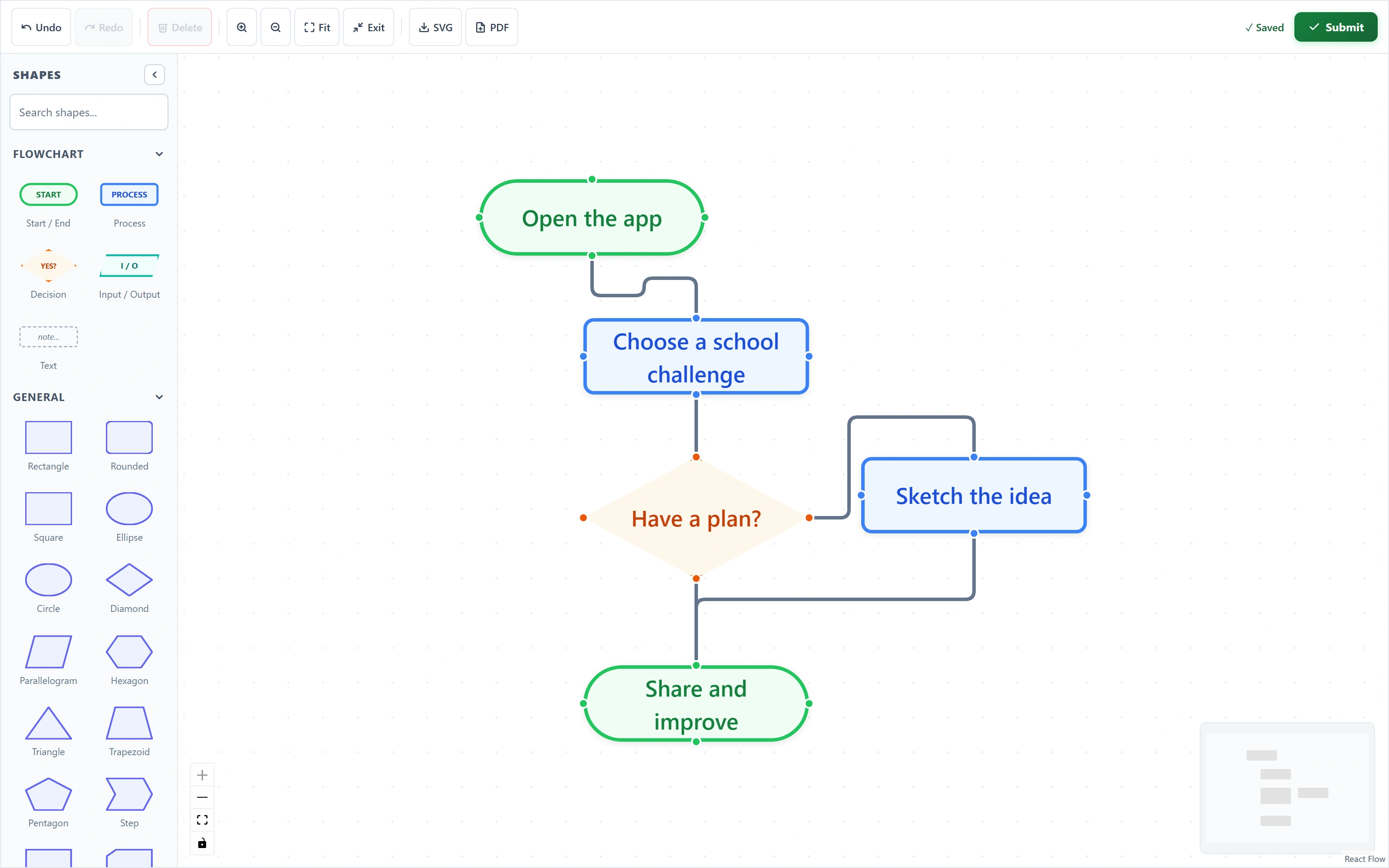
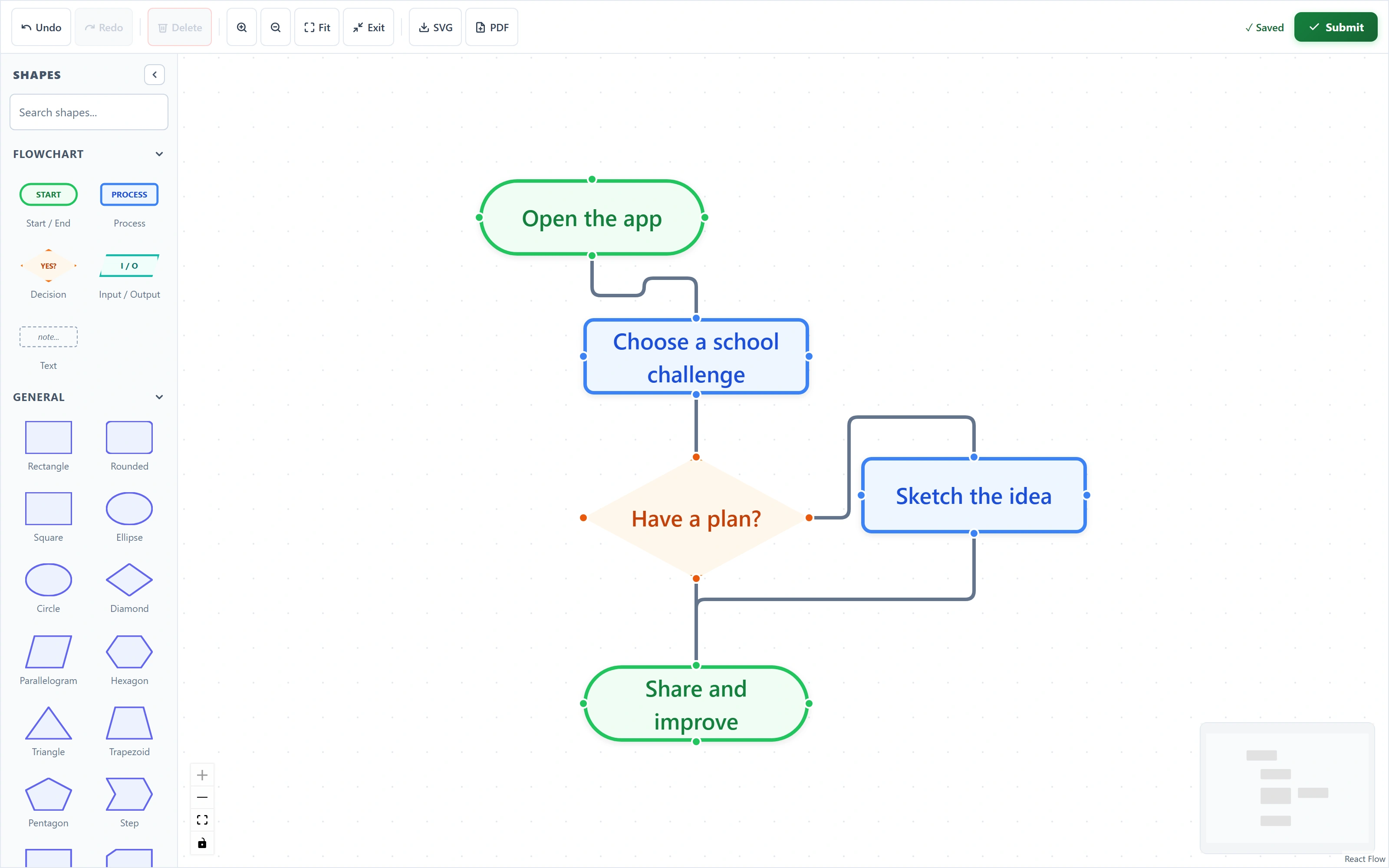
An idea becomes a visible plan
A real diagram made with the native shape palette, editable labels and connected decision branches.
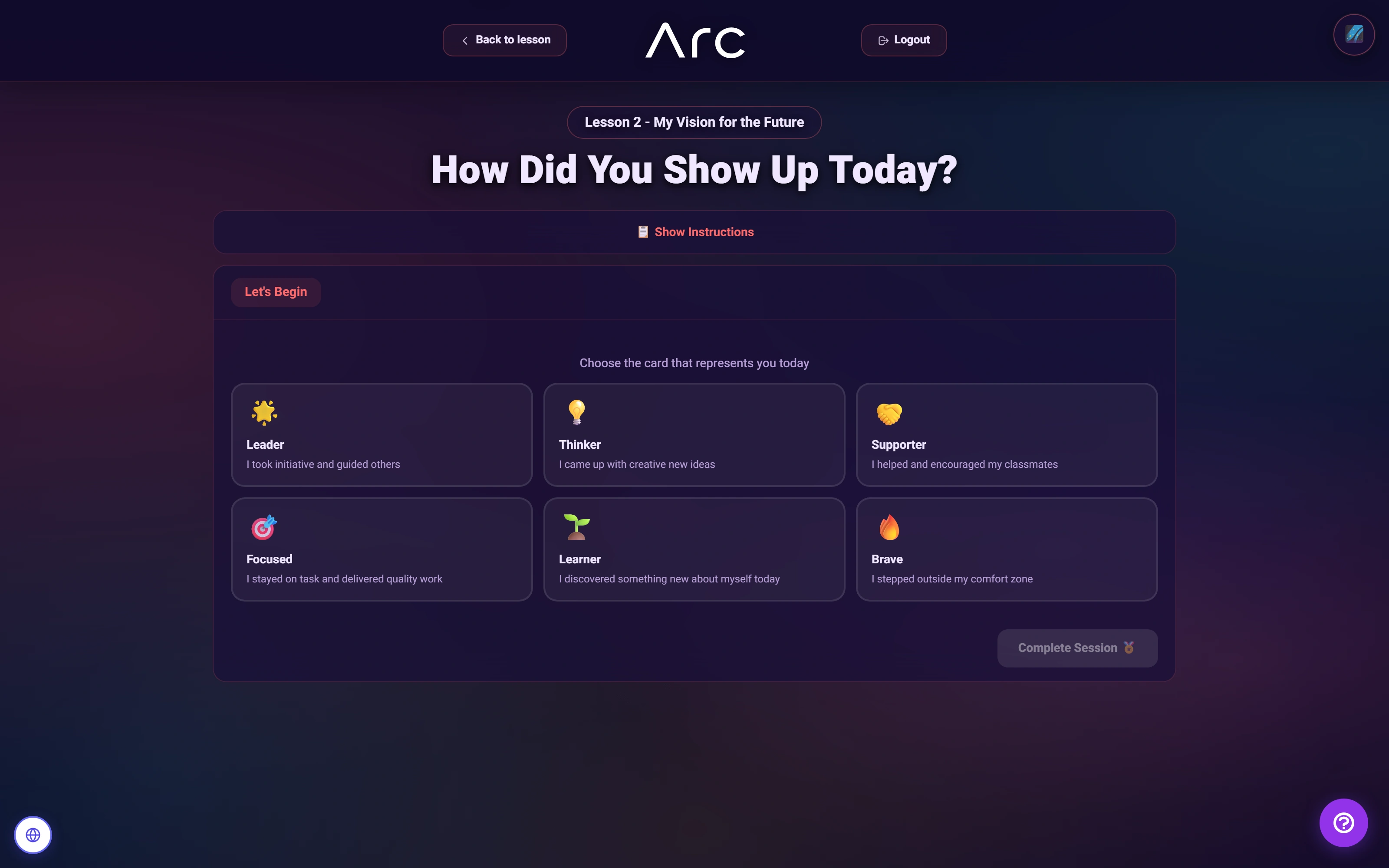
End a lesson with reflection
The student can choose a session-finale card, then explain how they showed up in the lesson.
Run the room
One classroom. Two sides of the moment.
A student commits an answer. The instructor reads the room, closes the round and advances. Independent student sessions follow the classroom’s shared state.
One classroom. Two views.
Follow a real quiz session from the student answer to the instructor controls and classroom scores.
Read the walkthrough
- Answer as a student
The student chooses an answer. Arc locks the response while the round is active.
- Read the classroom
The instructor board receives the submitted answer and updates its leaderboard.
- Advance the round
The instructor uses the native close and next-question controls.
- Continue together
The student screen advances through Arc’s built-in polling fallback; both test students answer the second question.
- Close the session
The native end-session confirmation is accepted and the ended state is shown.
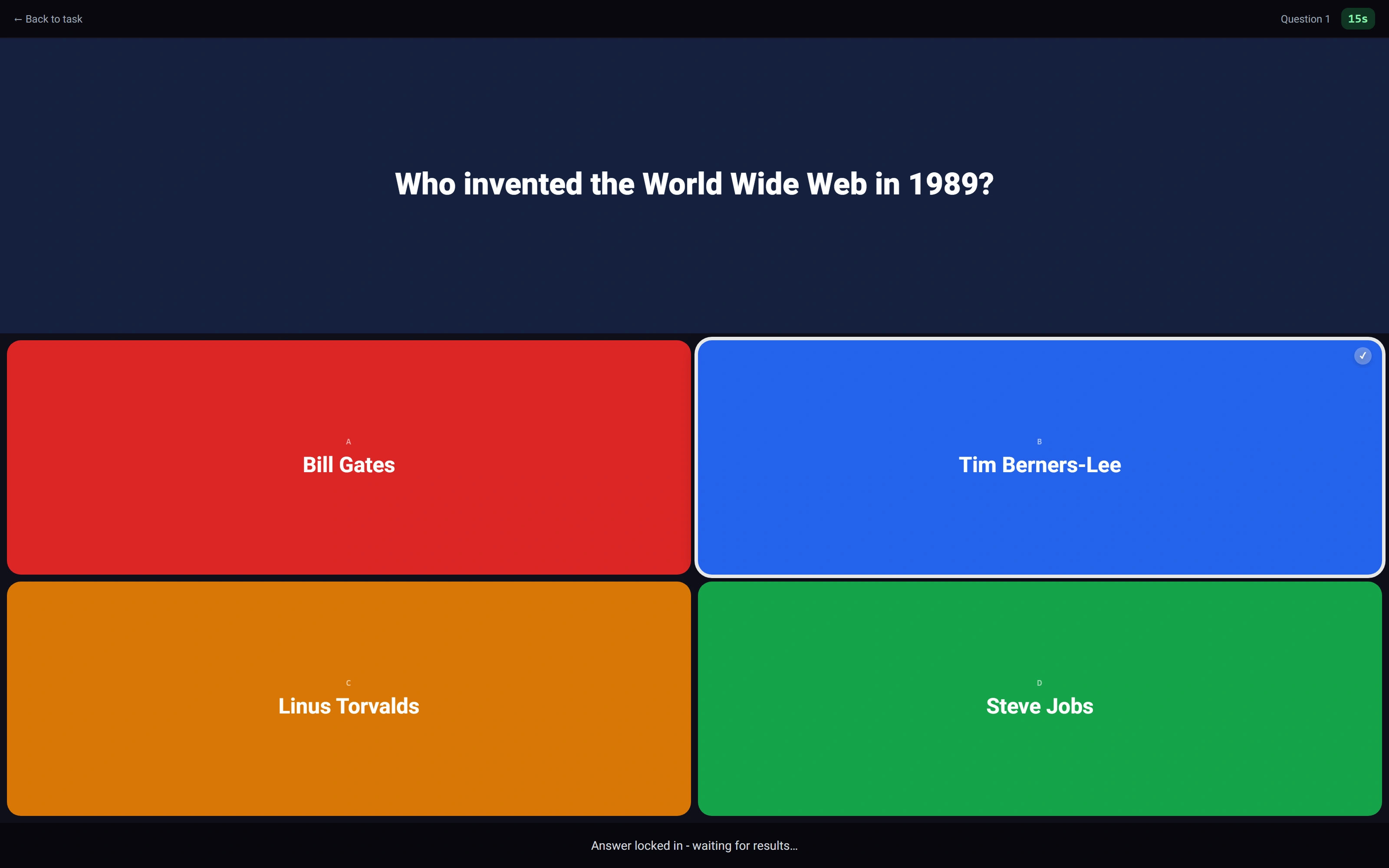
A student commits an answer
The choice is locked while the real shared question remains active.
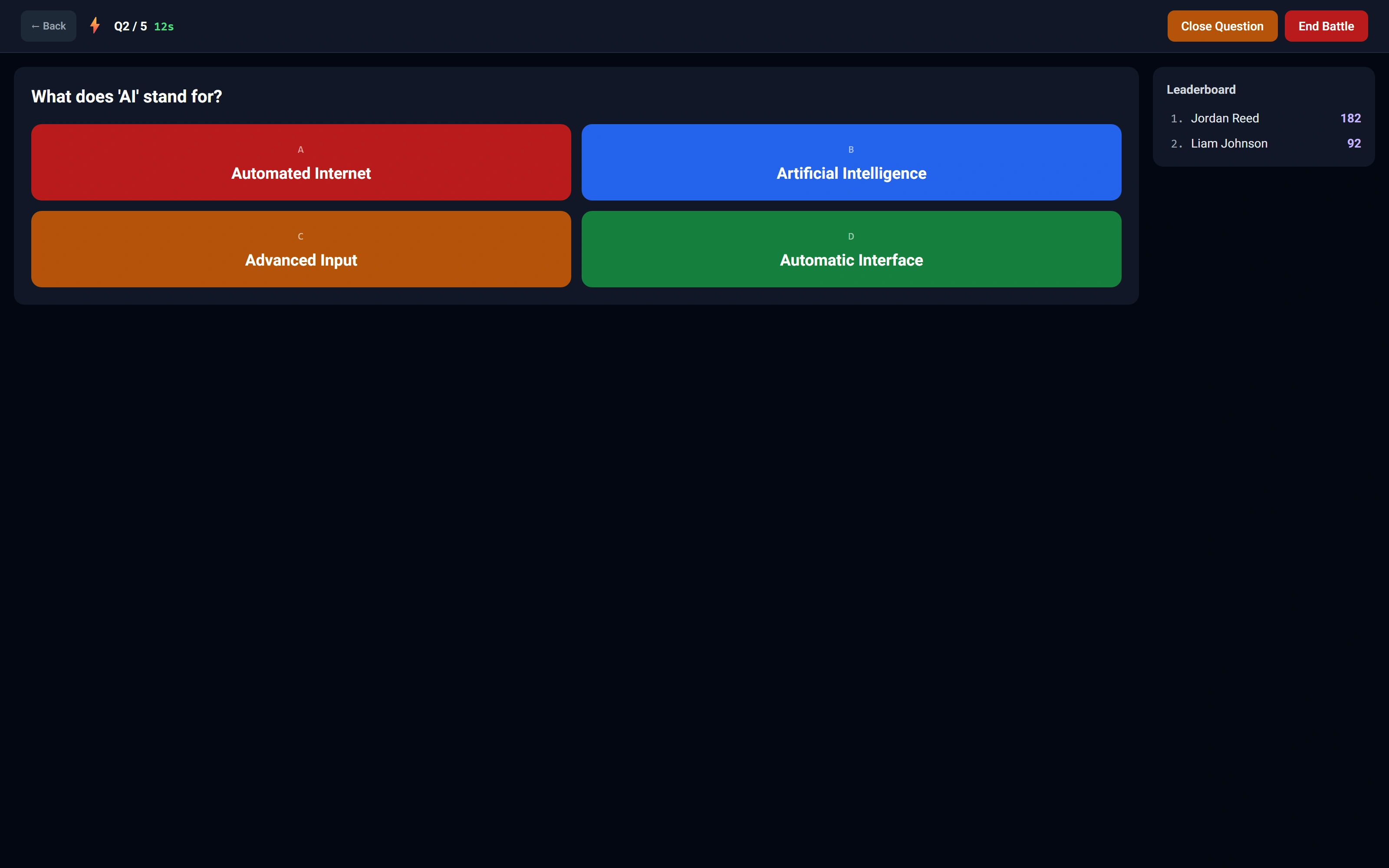
The instructor sees the shared session
Question controls and a two-participant leaderboard remain in the classroom view.
Build the curriculum
Start with intent. Keep the draft in your hands.
Set a learning goal and activity preferences. Arc assembles a sequence from existing material, then lets the author refine the lessons and see what still needs preparation.
Build a syllabus with intent.
Set a learning direction, assemble existing activities, then refine the sequence and inspect teaching readiness.
Read the walkthrough
- Set the direction
The author sets a goal and activity preferences for three lessons.
- Assemble existing activities
Arc creates a three-lesson, nine-activity draft from tagged source activities. Preferences affect ranking; they are not strict type filters.
- Refine the sequence
The author renames the opening lesson using the native draft editor.
- Review teaching readiness
The readiness screen identifies activities without mini-lessons or general lesson materials. This is a sample gap, not a completed curriculum claim.
- Preview the syllabus
The preview retains source provenance and activity mix. The capture does not publish or assign the draft.
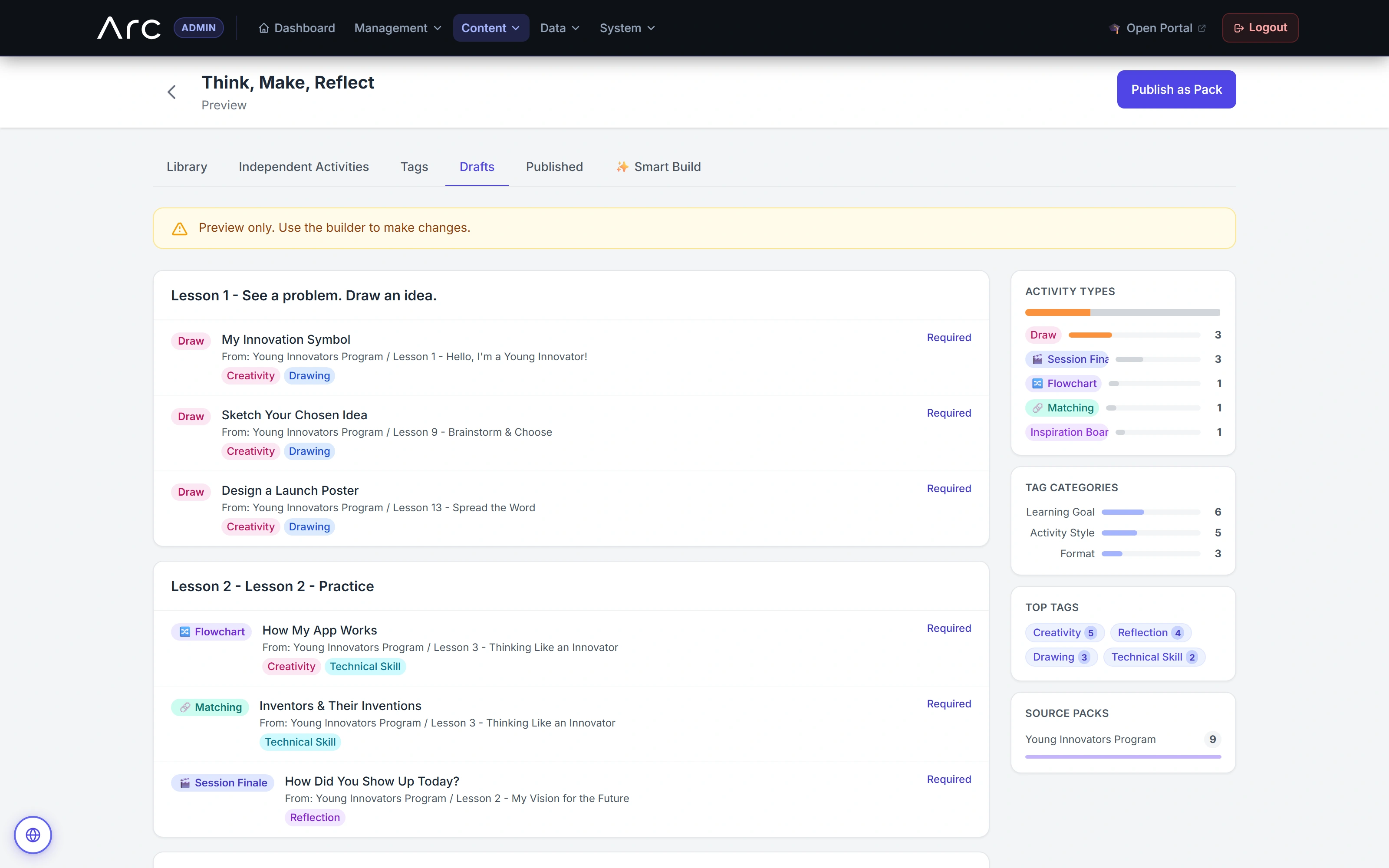
Review an editable learning sequence
The draft keeps its activity mix and source context visible before publication.
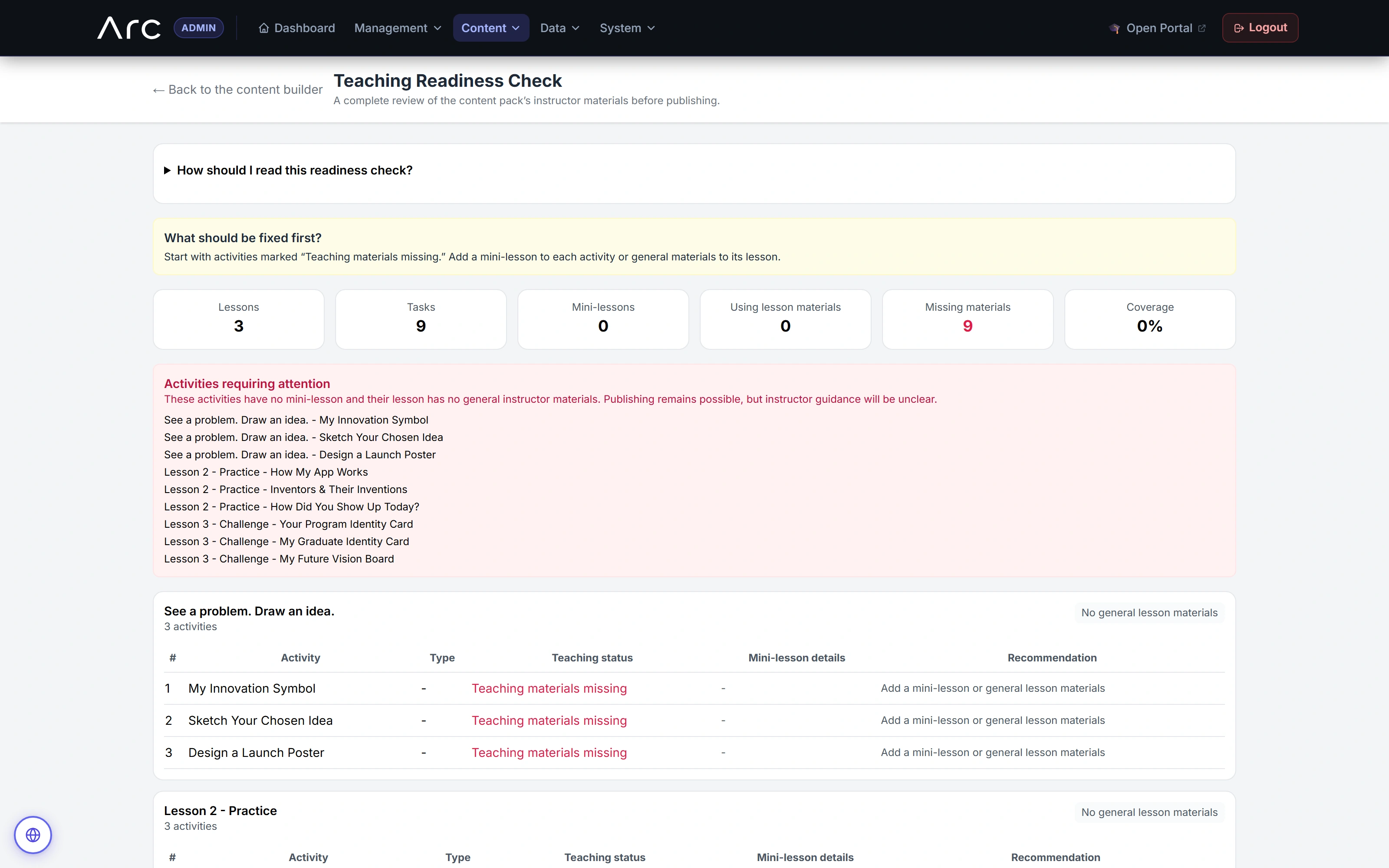
Make preparation gaps visible
This sample draft is missing teaching materials. Arc lists the affected activities and recommends what to add.
Follow the work
A first version is the beginning.
Keep a student’s submission, the instructor’s published feedback and the next revision connected. School and program views preserve the context behind participation and progress.
From a first idea to a stronger second version
A real student submission, an instructor’s revision request, and an improved answer - with both versions preserved.
Read the walkthrough
- Submit a first idea
A fictional student writes a first response and submits version 1 of the activity.
- Turn feedback into a clear next step
The instructor reads that response, publishes actionable feedback and requests a revision.
- Improve the work. Keep both versions.
The student reads the feedback and submits an improved version 2, preserving the first submission.
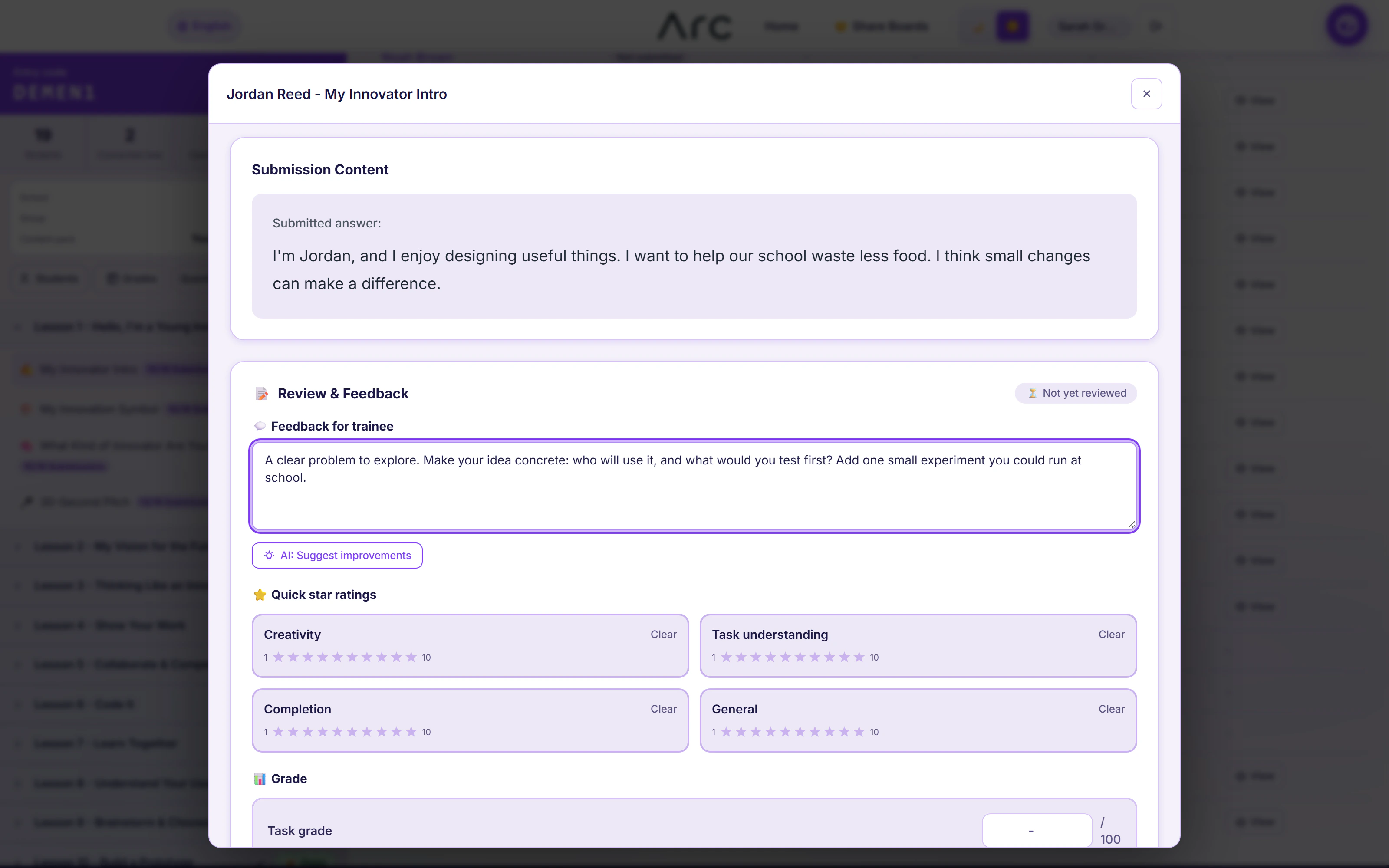
Feedback beside the original work
The instructor reads a student response and writes a concrete next step in the same review panel.
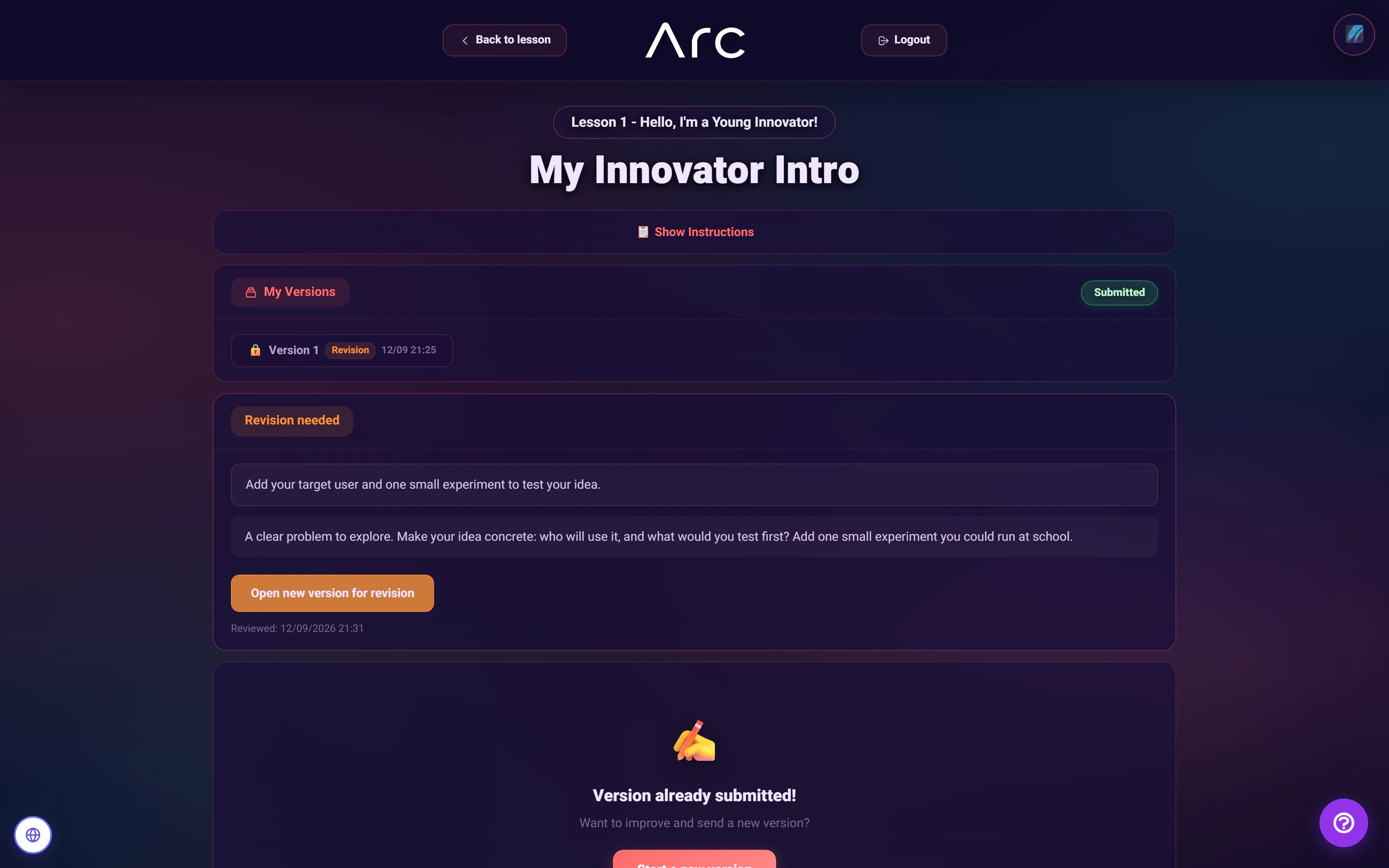
A clear reason to try again
The student receives the revision request alongside the previous version, with a direct path to improve the answer.
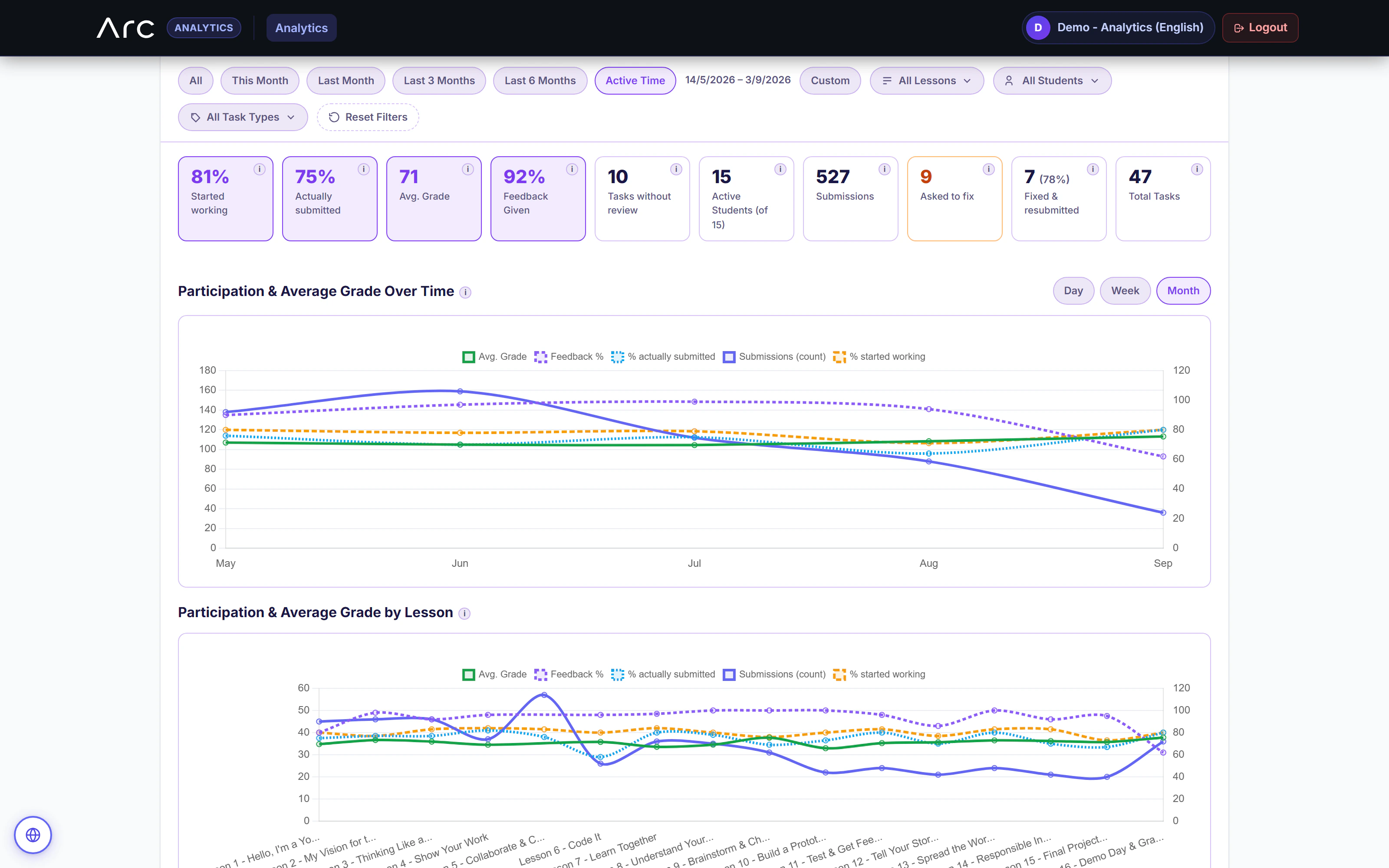
Reporting that keeps the learning loop visible
Participation, submissions, feedback, and revisions appear together, with time and lesson views for deeper inspection.
More of the product 16 additional screens
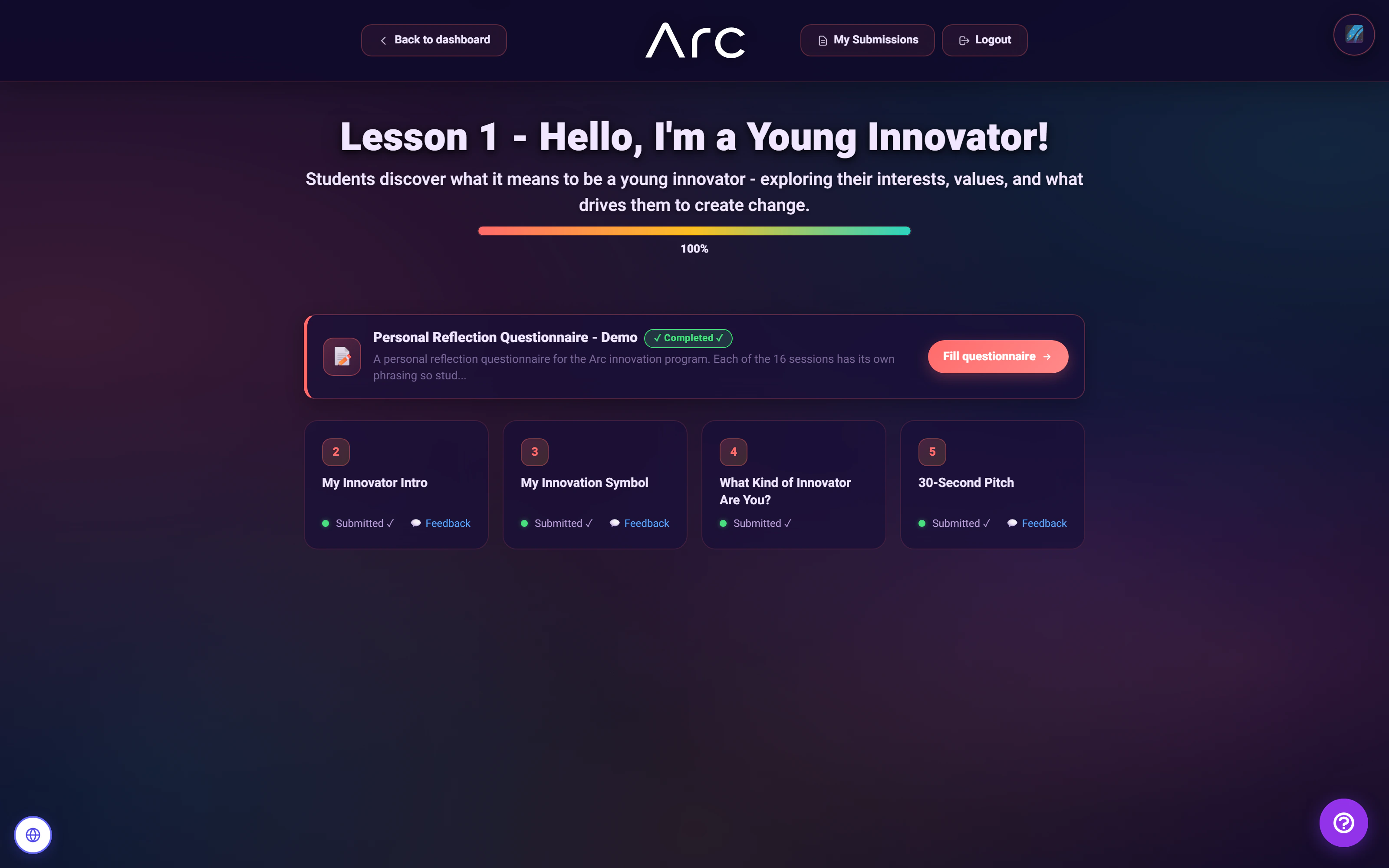
A lesson from the student side
One lesson brings reflection, writing, drawing, and a short pitch together, with submission and feedback states beside each activity.
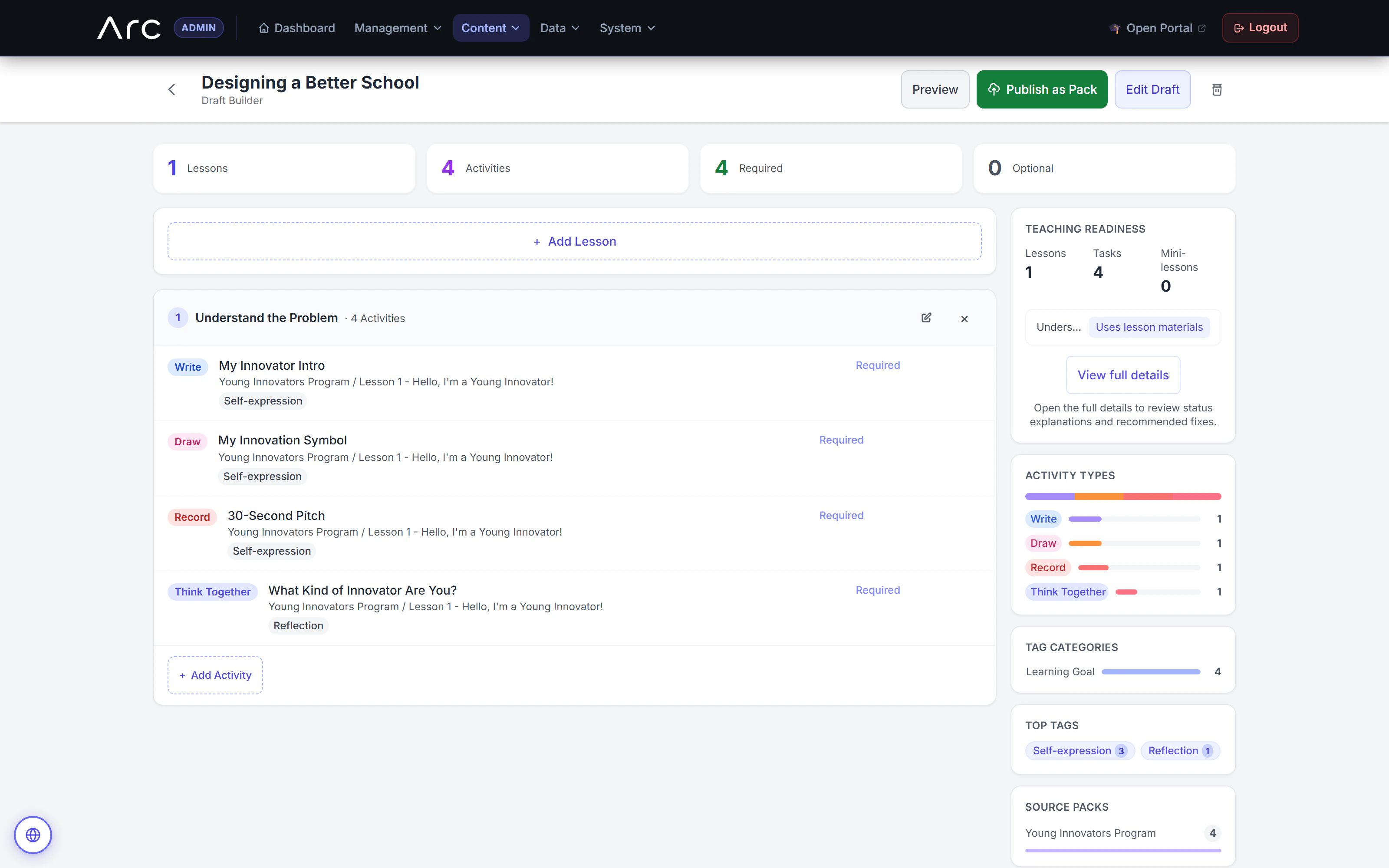
Reusable activities become a lesson
The draft builder assembles writing, drawing, recording, and reflection activities while showing teaching materials and the mix of activity types.
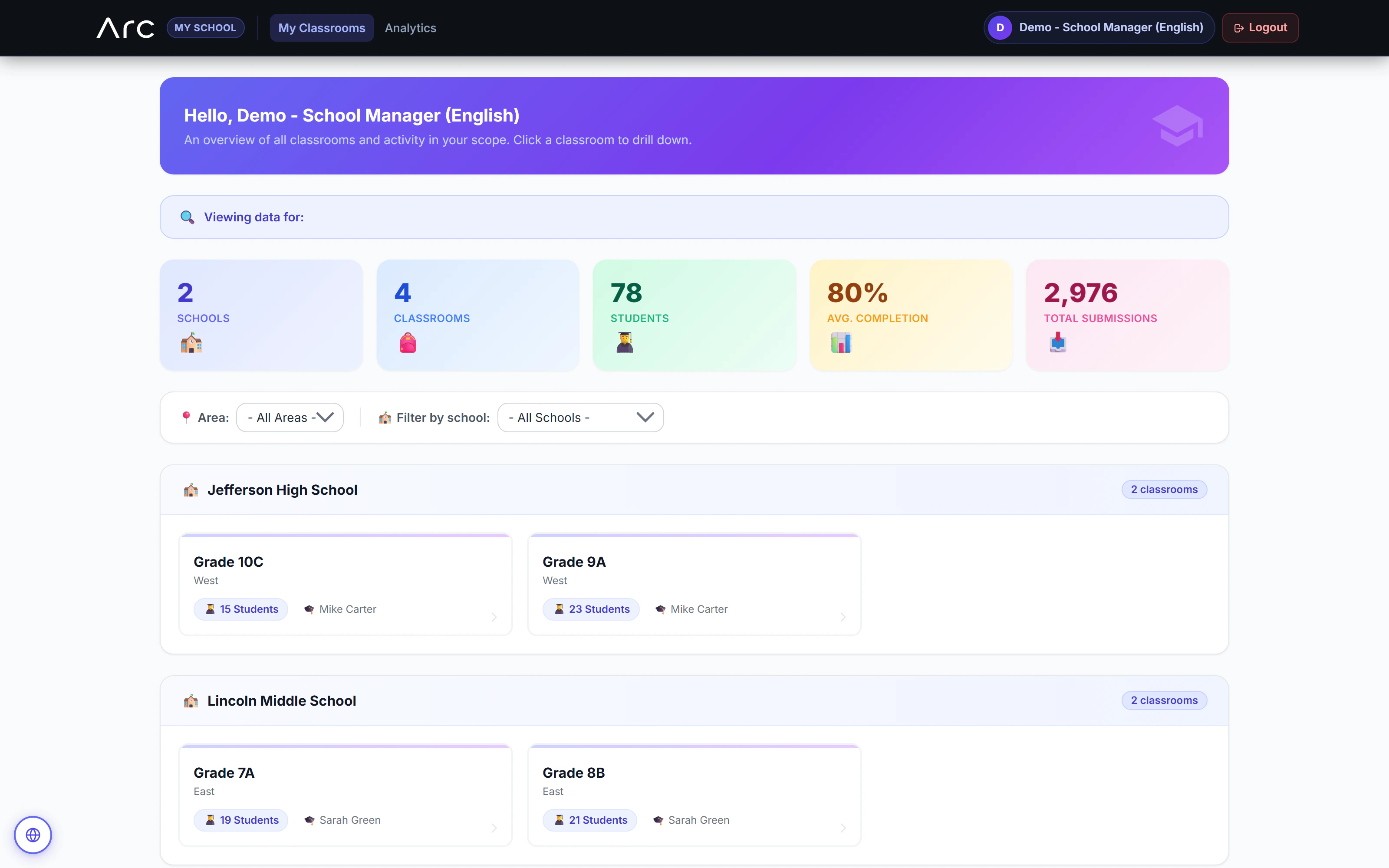
A school view with classroom context
The school workspace gathers scoped classrooms, instructors, participation, and submission totals in one operational view.
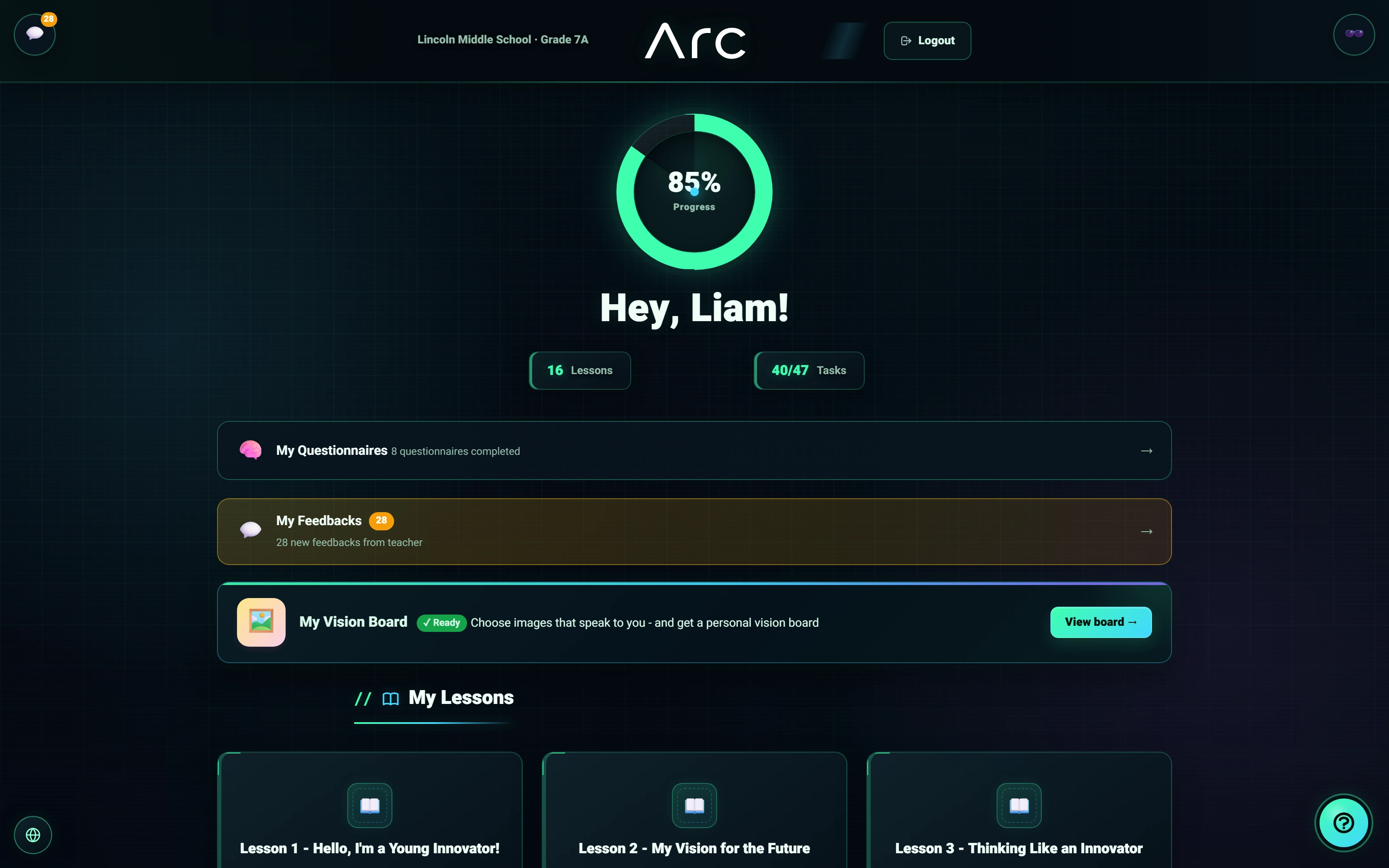
A technical style students can choose
Neon Hacker is a persisted theme choice within the real student workspace.
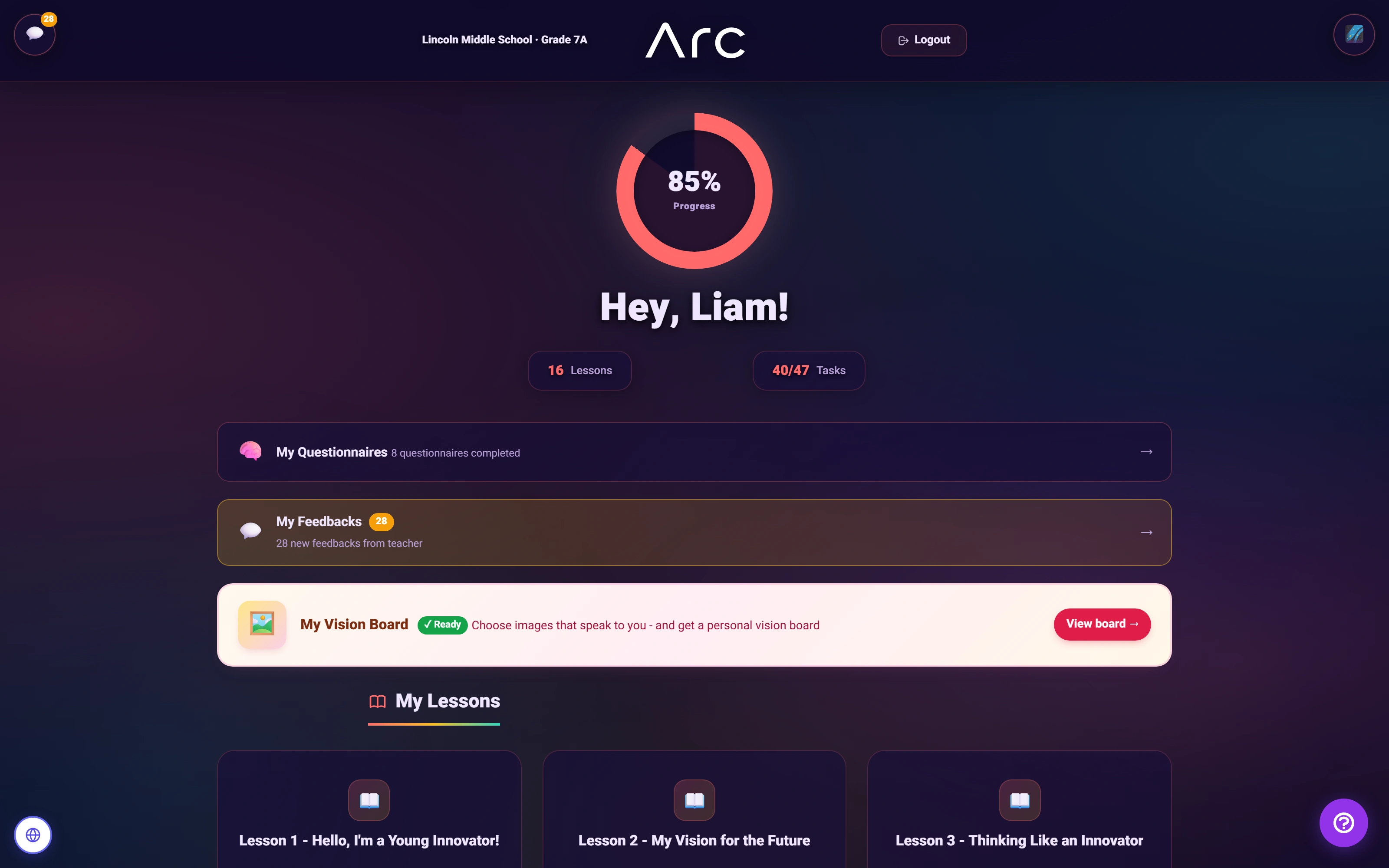
The Aurora learning workspace
The default theme keeps lessons, student progress and reflection together.
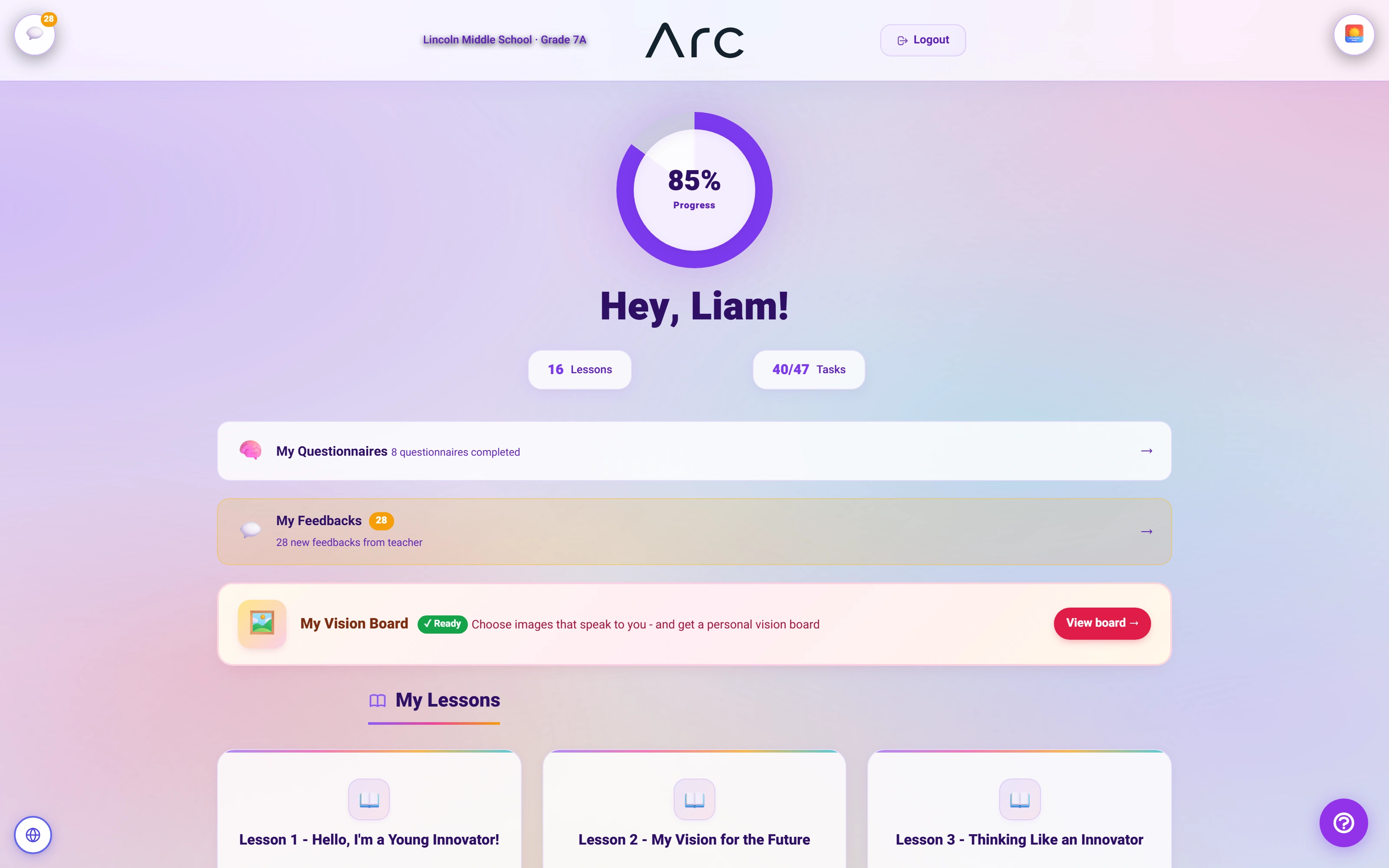
A lighter way into the lesson
Aurora Light offers another complete student theme.
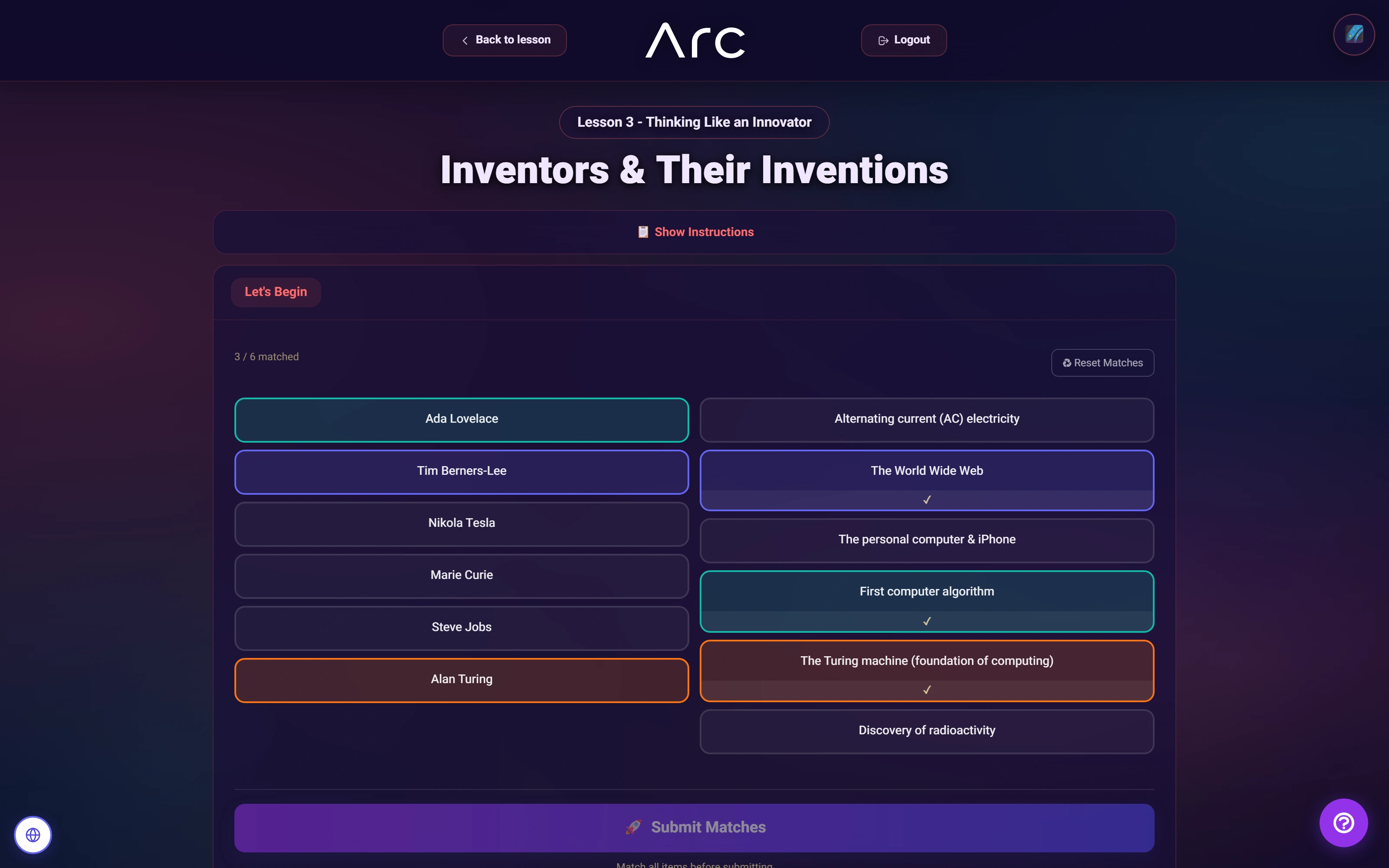
Think through the connections
Three matched pairs are visible in the native activity.
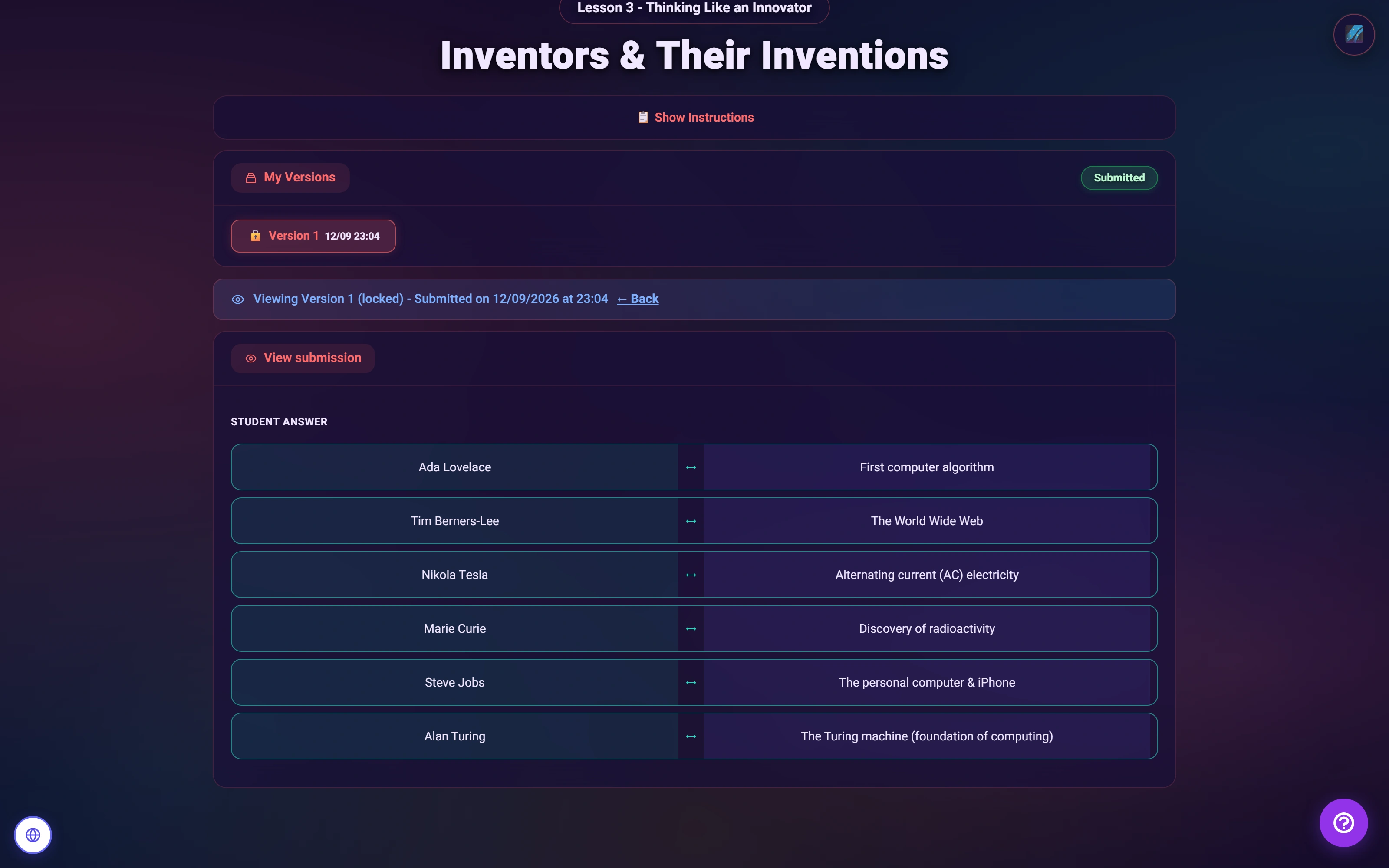
A submitted answer stays inspectable
The locked version view preserves the six submitted pairs.
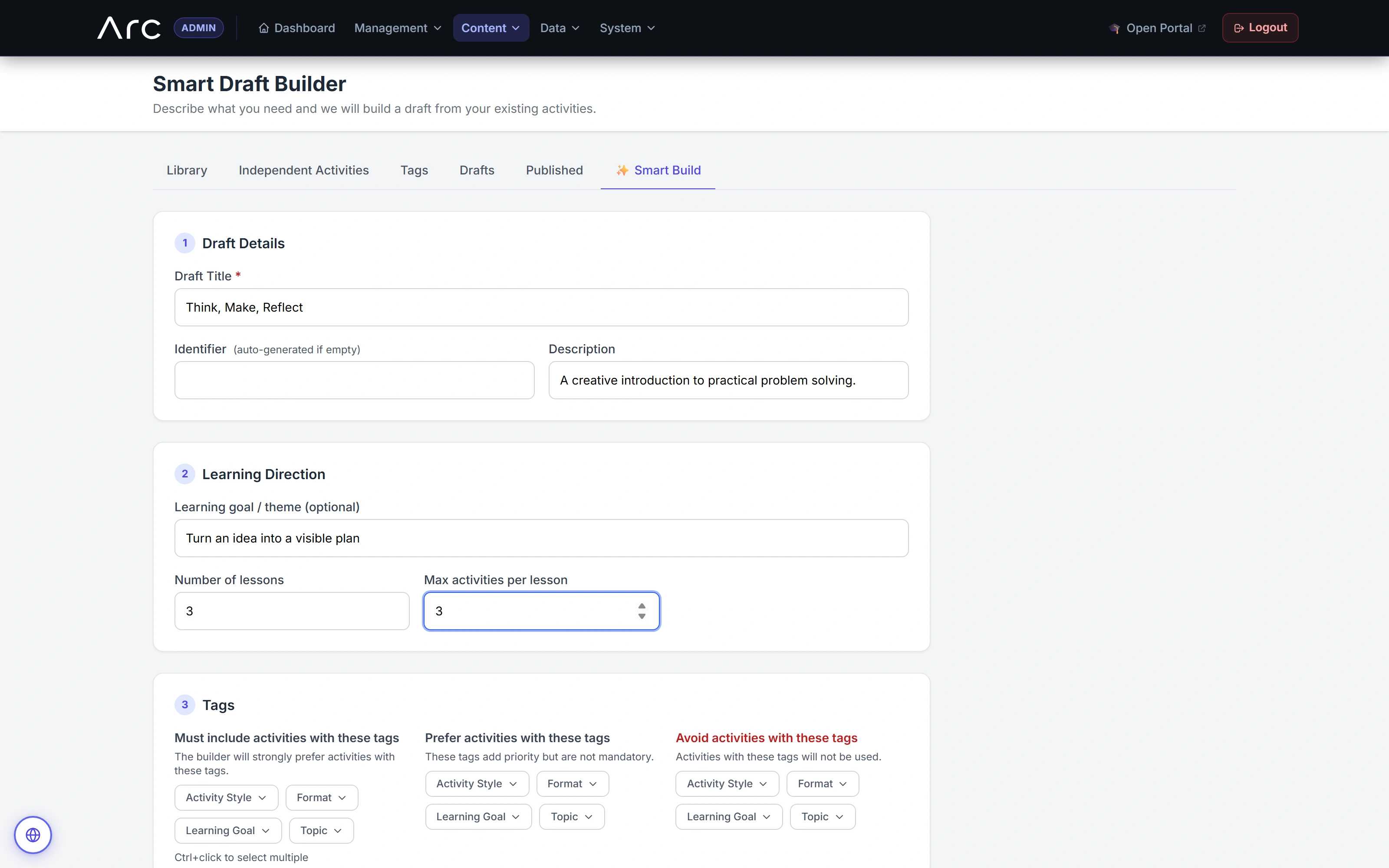
Start with a learning direction
A goal, priorities and preferred activities guide selection from the existing content library.
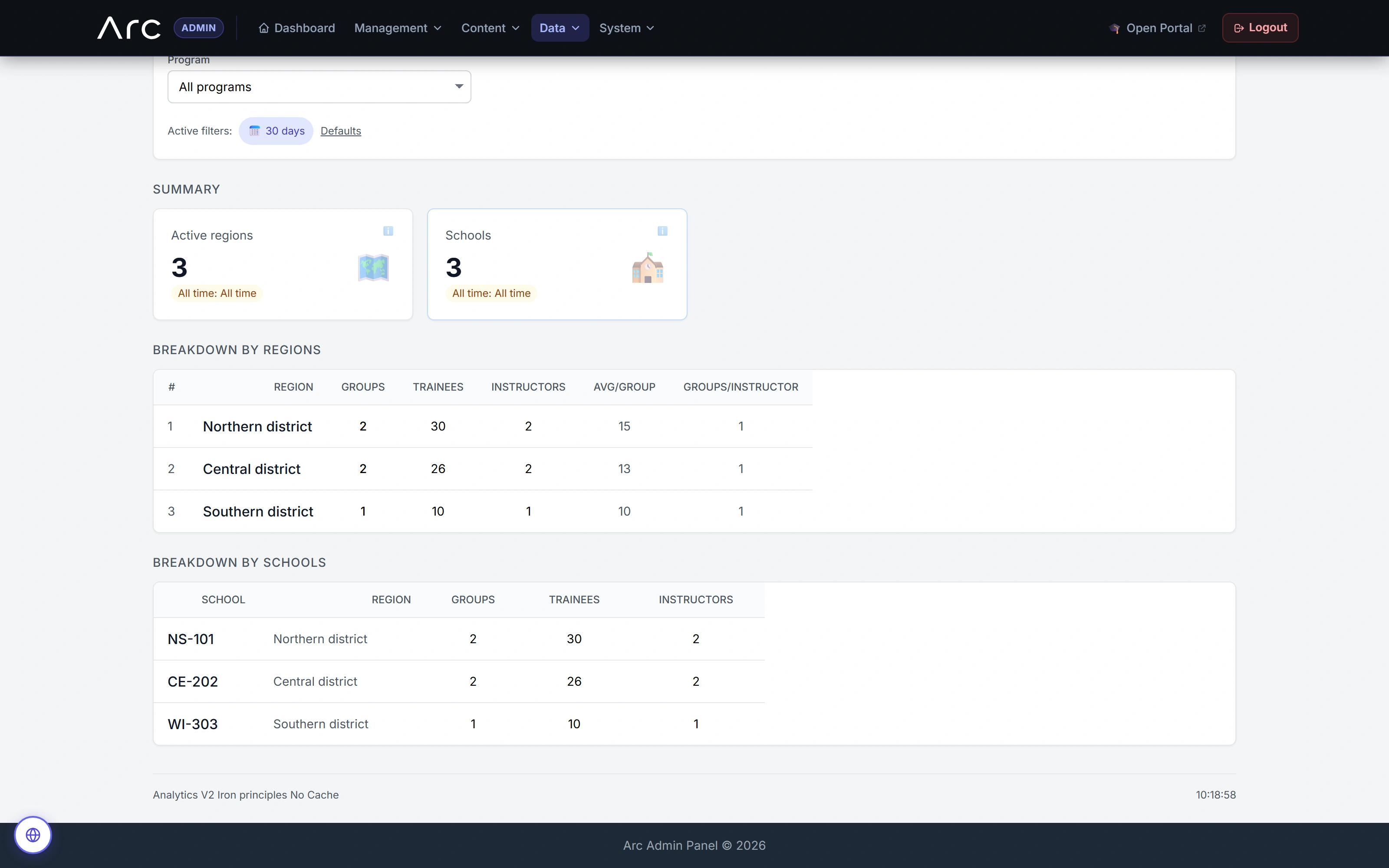
The program across regions and schools
Regional and school breakdowns retain group, learner and teaching context.
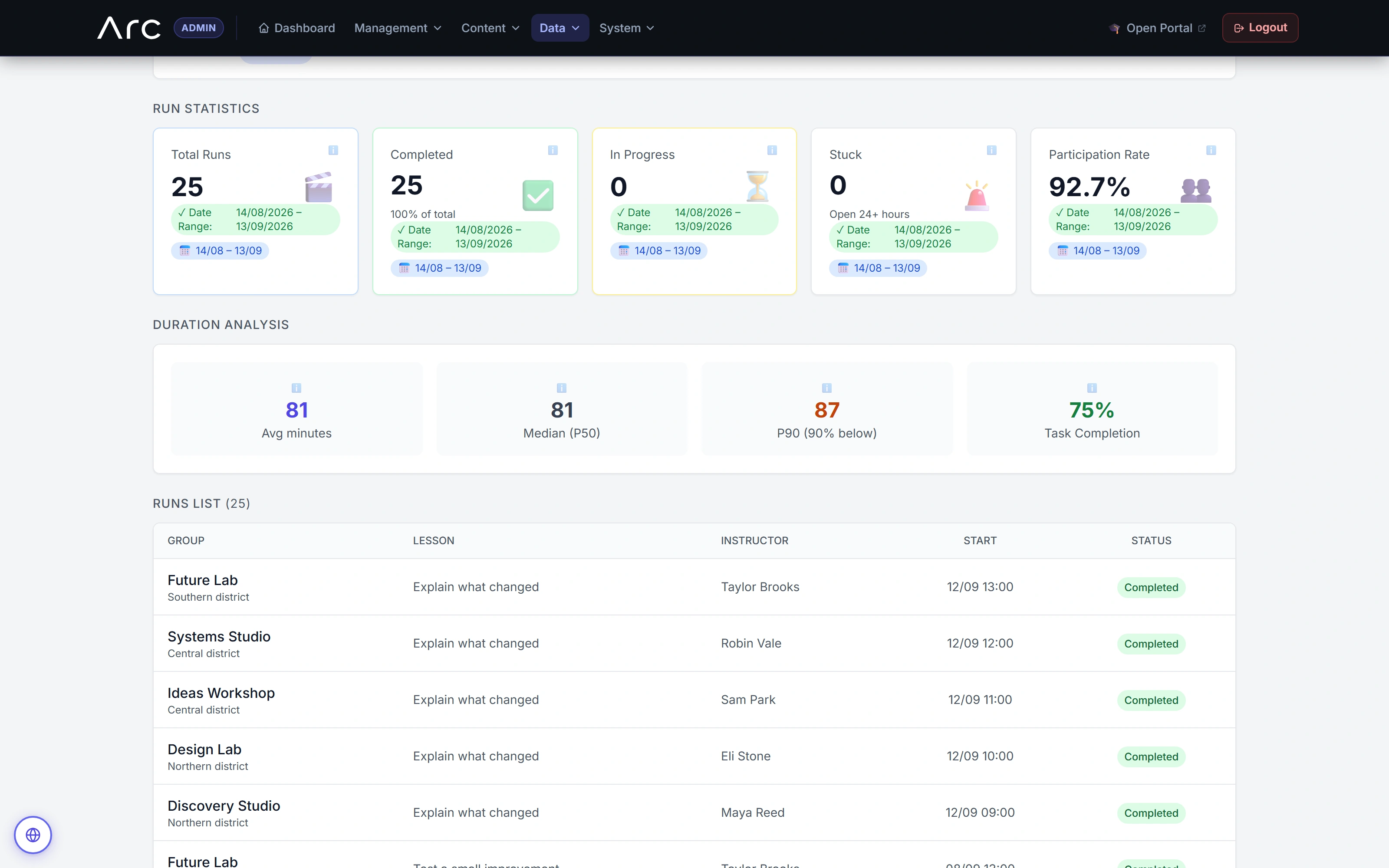
Lesson delivery becomes inspectable
Run statistics, duration and the actual lesson-run list appear together.
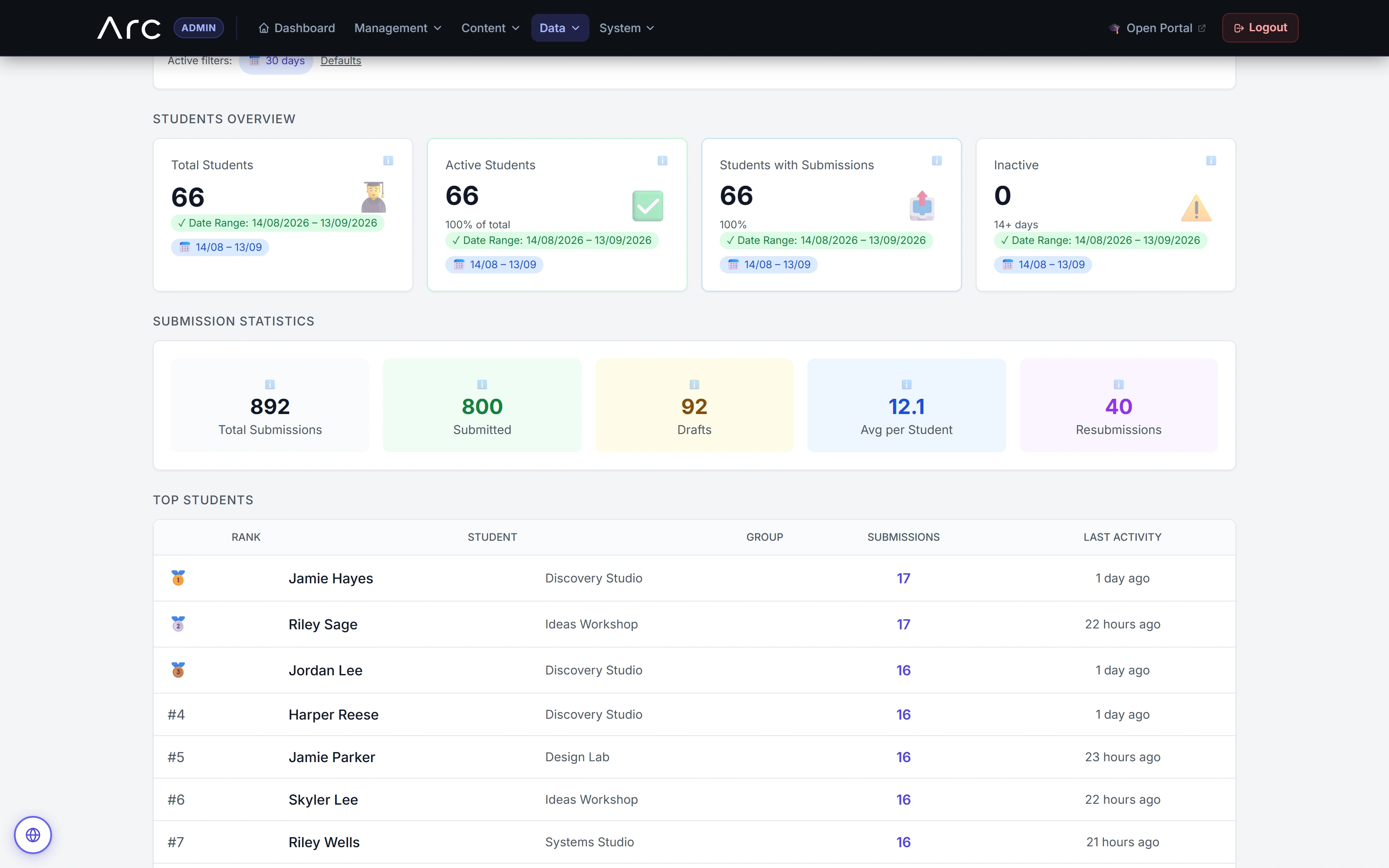
See participation and work separately
The native view distinguishes submitted versions, drafts and repeat submissions before listing learner activity.
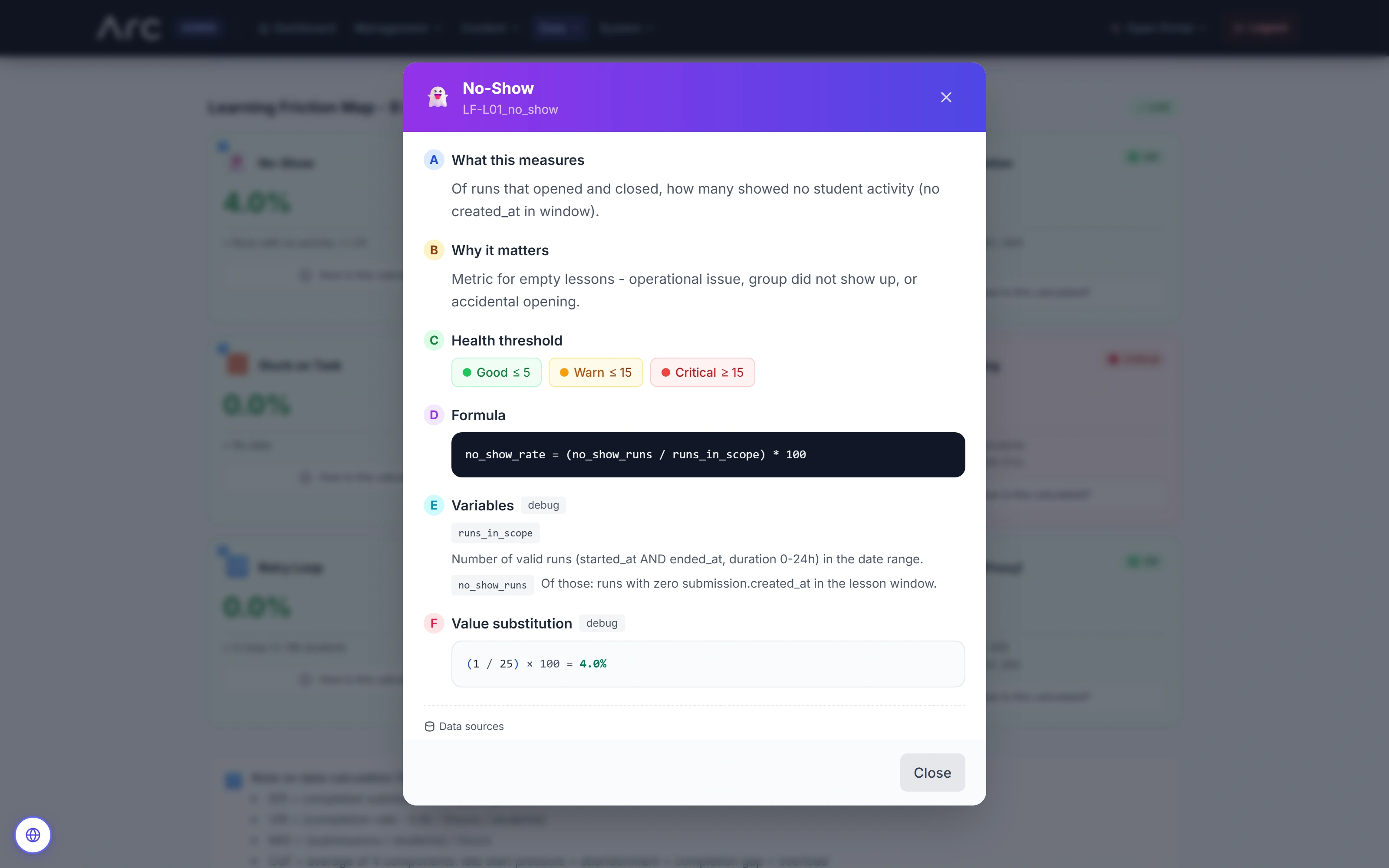
Open the reasoning behind a number
A native calculation dialog explains the no-show definition, threshold, formula and substituted values.
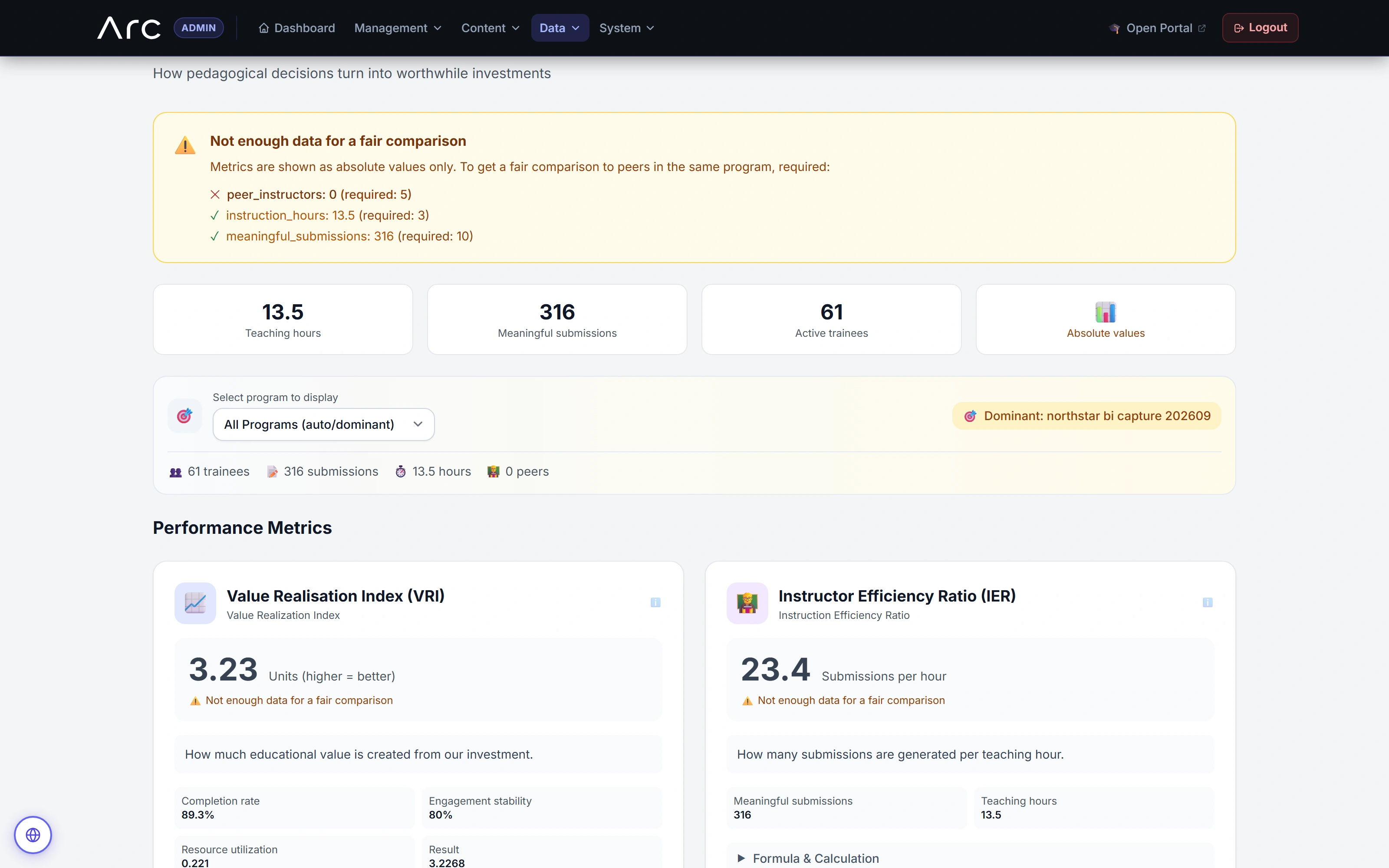
A narrower scope changes what can be concluded
The seven-day view has insufficient eligible peers and displays absolute values instead of a peer comparison.
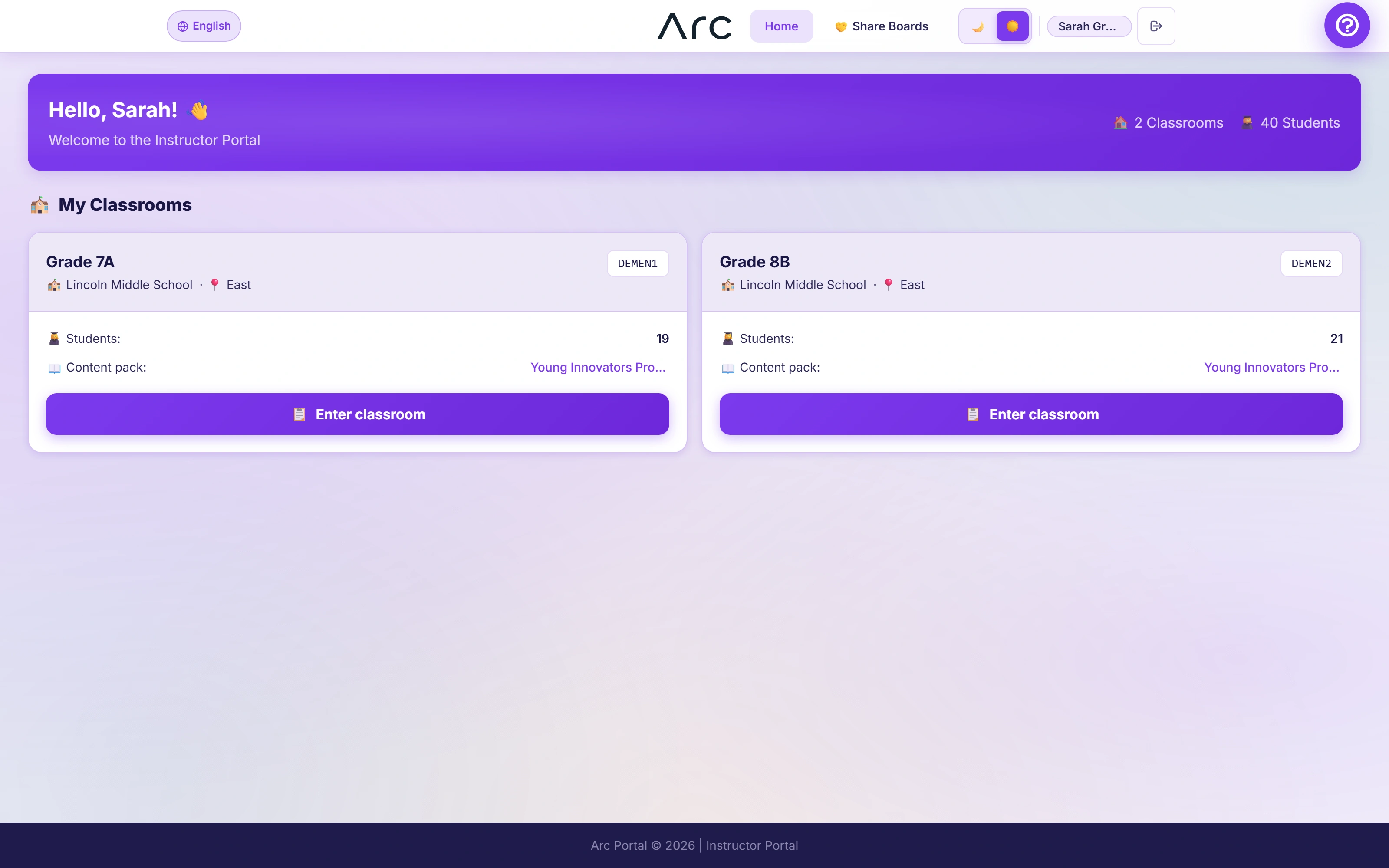
A teacher’s starting point
The original instructor home opens the assigned classrooms and shows their school and content-pack context.
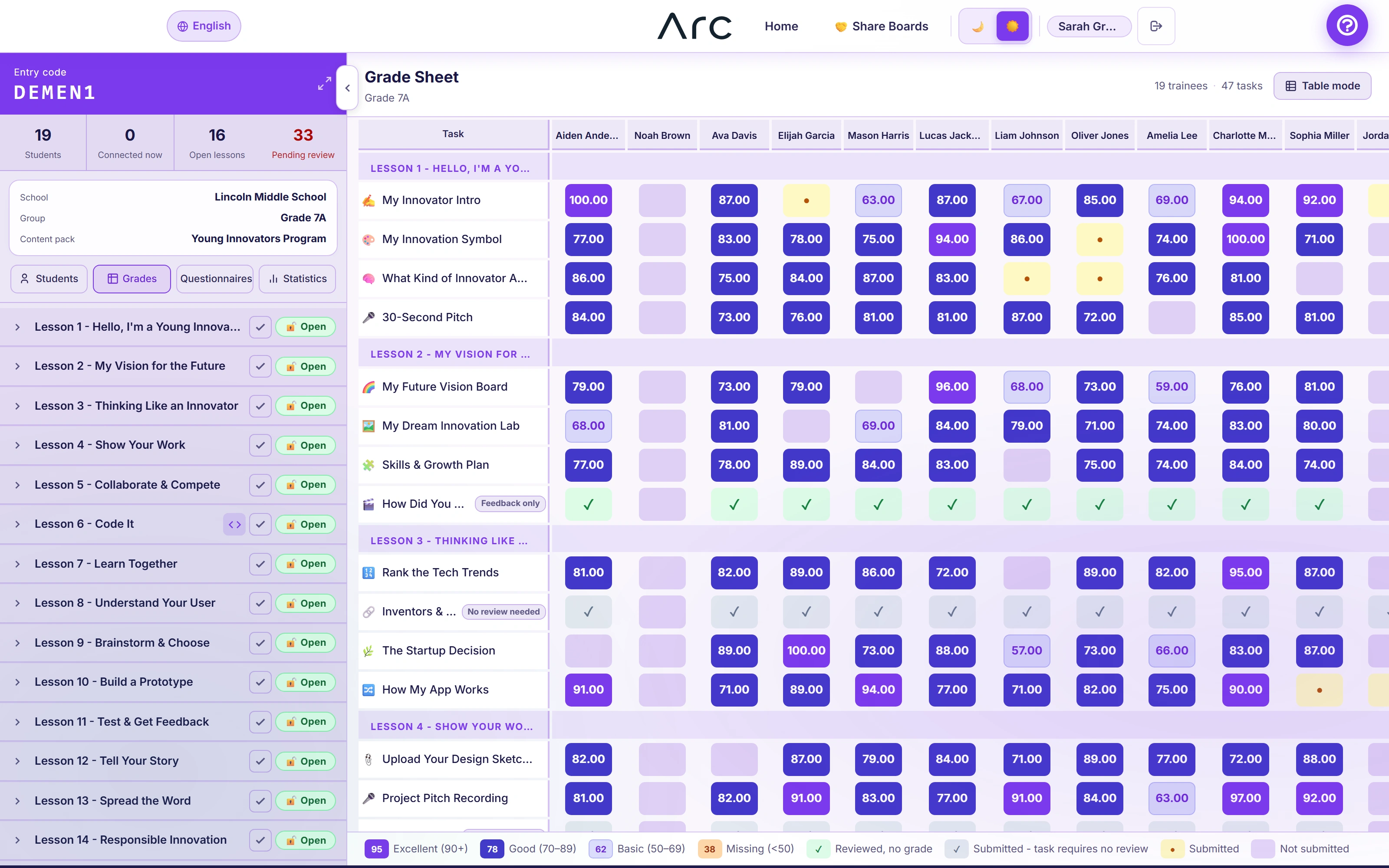
A grade matrix with different work states
Scores, feedback-only work, work awaiting review and unfinished activity have distinct treatments in the native matrix.
FOR THE TECHNICALLY CURIOUS
The thinking underneath.
The important boundaries, implementation choices and trade-offs. Open a topic for the details.
- 01
Different people
Student, instructor, author and management portals resolve a typed actor and the scope of their work.
- 02
Shared learning rules
Curriculum, task handlers and classroom session services give each activity a defined lifecycle.
- 03
Versioned work
Drafts, submitted versions and published reviews retain their relationships as a learner revises.
- 04
A wider perspective
Scoped reporting connects classrooms and programs back to activity, feedback and original submissions.
Laravel · Blade · Alpine.js
Role-specific portals connect reusable content, classroom delivery and reviewed student work.
TypeScript · React · Reverb
Specialist activity editors and shared updates sit within the classroom's permissions and context.
PHPUnit · Dusk · Docker
Typed boundaries, authorization checks and browser suites support changes across the portals.
01Change the world around the work, not the work itself.
The theme registry defines Aurora, Aurora Light, Neon Hacker, Magic Forest and Space. A validated student preference selects the experience; theme resolution has a safe fallback. The learning records do not need to be duplicated for each visual style.
Themes change navigation, progress treatment and atmosphere. They are presentation choices, not separate games or evidence of improved learning outcomes.
02Give different activities different submission contracts.
The task registry dispatches to specialized handlers. Canvas and flowchart work export visual artifacts; matching stores structured answers; programming has a Browser Coder boundary; shared sessions finalize participation into submissions. Reflection, sorting, questionnaires and external launches have their own paths.
The canonical enum lists 21 kinds, including games and instructor-led or external activities. That is not a claim of 21 equally complete standalone editors. The films exercise a selected set of native activities.
03Keep late autosave from rewriting a submitted moment.
Submission services distinguish draft updates from submitted work. A late autosave does not silently invent a new draft after submission. Published reviews belong to the submitted version, so later student changes do not erase the context the instructor reviewed.
Each editor must respect that lifecycle. Text revision is demonstrated; the captured flowchart’s new-version editor did not automatically copy the previous editable diagram, so that behavior is not promised here.
04Treat a live lesson as shared state with clear transitions.
Quiz services validate the current question, membership, active state and timing before accepting an answer. Instructor controls close, advance and end rounds. Other shared modes have distinct rules: moderated word clouds, anonymous-position heatmaps, turn-based debate and branching votes.
Realtime presentation needs a recovery path. The demonstration uses Arc’s polling fallback with independent browser sessions; it does not establish WebSocket latency or production performance under load.
05Separate curriculum assembly, publication and release.
The smart draft generator scores existing activities using tags and preferences. An author can edit the result and inspect coverage. Publishing creates a reusable pack; assigning a pack to a class and releasing its lessons are separate operations.
Preferences influence ranking rather than guaranteeing exclusive task types or hard tag constraints. The captured draft deliberately contains preparation gaps; generation is not proof that a curriculum is ready to teach.
06Include access scope in the report’s identity.
Analytics intersects actor restrictions with the requested reporting scope, then includes that context in cache identity. School views can connect aggregate activity to permitted classrooms and submission previews.
Participation and learning-friction indicators describe recorded activity. They are not validated educational outcomes, and questionnaire profile labels are not a clinical assessment.
SCOPEWhat this evidence establishes
- All displayed schools, people, work and curriculum are fictional local fixtures. Five themes, selected visual activities, a shared quiz and the curriculum builder were exercised through the original UI.
- The capture runs development revision 43dfaf6. The final source audit checked 5549bf96; its intervening changes concern delivery configuration, documentation and browser-test timing, with no product UI/domain changes. Production has a separate release.
- The curriculum film prepares an editable draft and exposes missing materials. It does not publish a pack, assign it to a class or demonstrate AI-generated pedagogy.
- Browser Coder, Arc Gaming, external APIs and paid feedback-assistance providers were source-reviewed but not called from these Arc captures. Detailed source references belong to the private team repository.