Teach, notice, respond
A question, a timer, a shared reveal.
The instructor controls question progression and sees participation before the class moves on.
What should the final block be in a 60-minute study plan?
The instructor holds the pace.
The product starts and closes questions explicitly, advances to the next question and stores the session’s results. This example switches between two fixed states; no timer or student connection runs here.
Compare another formatWhat this part of Arc does
- Waiting room
- Question timer
- Answer counts
- Close and advance states
- Leaderboard
- Persisted session results
This is a browsable portfolio interpretation of Arc’s workflows with fictional examples. Navigation, filtering and theme previews work here; editing, execution and platform services belong to the original application.
Inside the original application.
Real Arc screens and recordings, captured locally with fictional people and work.
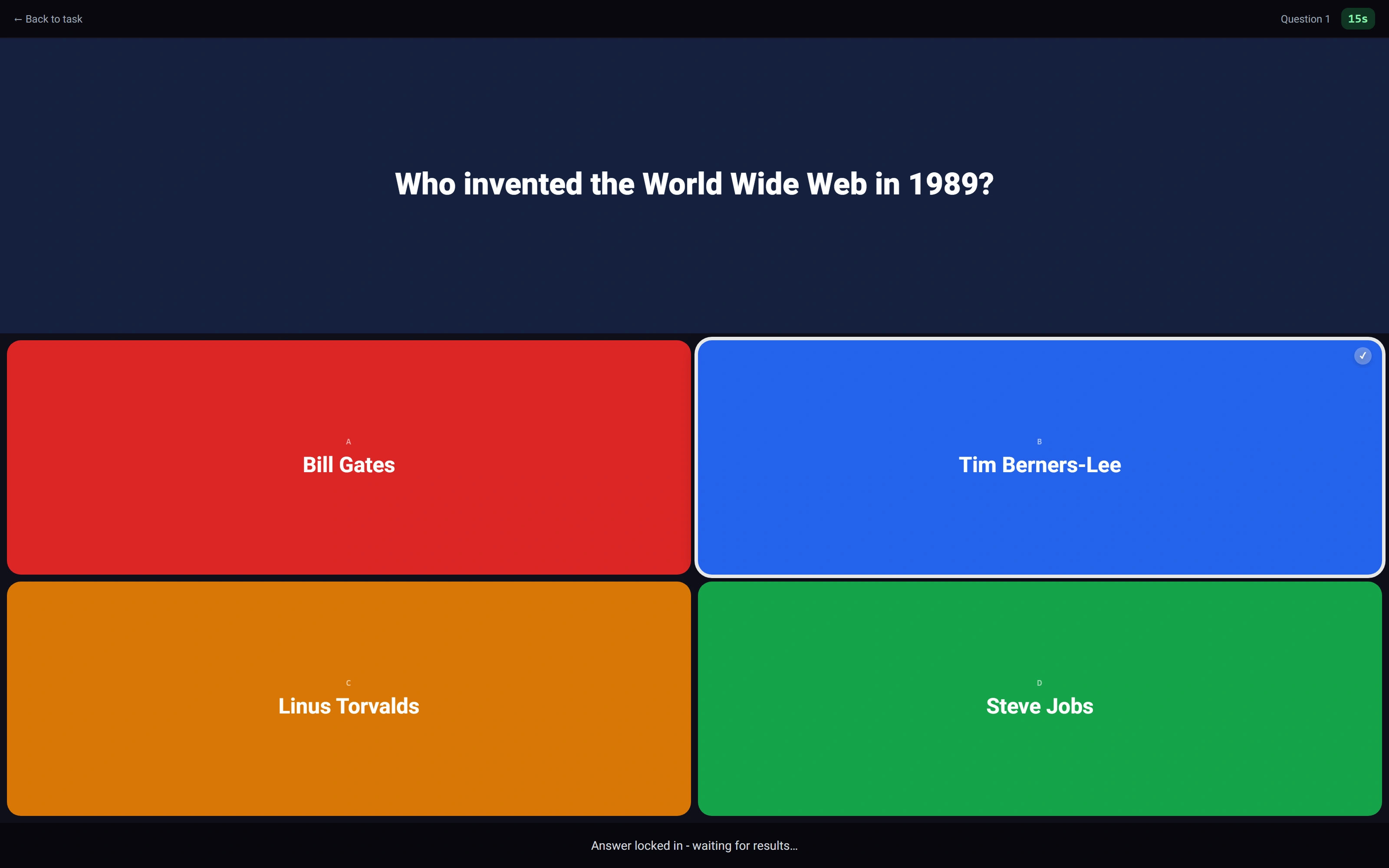
A student commits an answer
The choice is locked while the real shared question remains active.
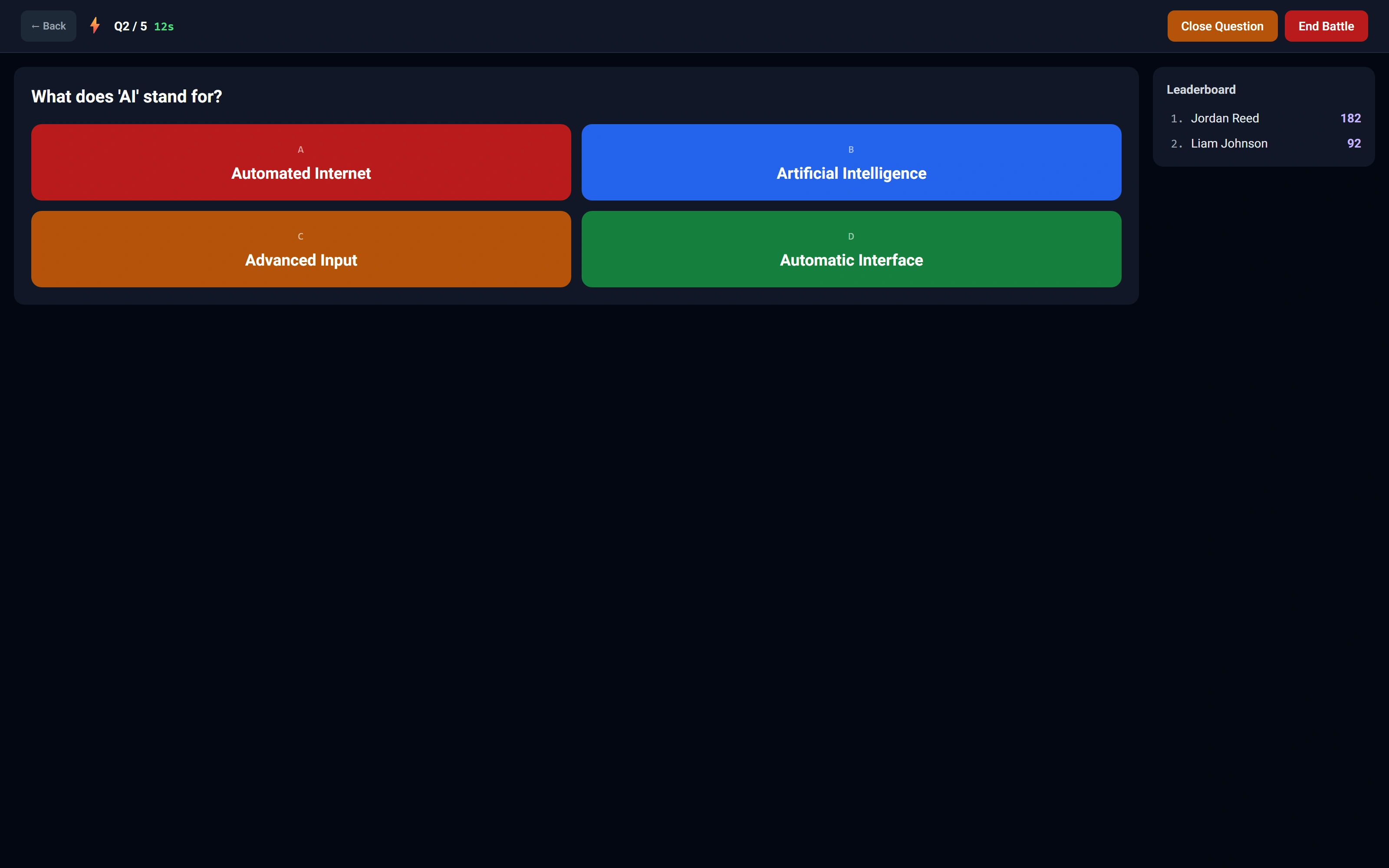
The instructor sees the shared session
Question controls and a two-participant leaderboard remain in the classroom view.
Watch this workflow in Arc
One classroom. Two views.
Follow a real quiz session from the student answer to the instructor controls and classroom scores.
Read the walkthrough
- Answer as a student
The student chooses an answer. Arc locks the response while the round is active.
- Read the classroom
The instructor board receives the submitted answer and updates its leaderboard.
- Advance the round
The instructor uses the native close and next-question controls.
- Continue together
The student screen advances through Arc’s built-in polling fallback; both test students answer the second question.
- Close the session
The native end-session confirmation is accepted and the ended state is shown.
Source references & review notes
app/Platform/Portals/Instructor/Controllers/InstructorQuizBattleController.phpapp/Platform/Domain/QuizBattle/QuizBattleSessionService.php
Source reviewed at development revision 5549bf96. Original captures have their own pinned revisions; the live platform has a separate release.