Run the learning platform
Understand the program before the exceptions.
Inventory, period activity, lesson-run states and operational health appear together.
Admin BI is a separate, admin-only workspace. Staff reporting has its own Overview, Grading and Progress pages.
- Classrooms
- 3
- Learners
- 66
- Instructors
- 3
- Schools
- 2
Activity, within the chosen scope
Operational questions
- Assignment
- Does every classroom have an instructor?
- Capacity
- Are some instructors or groups overloaded?
- Lesson runs
- Were started lessons closed correctly?
- Definitions
- Inspect the population and date window behind each metric
What this part of Arc does
- Population inventory is separate from date-dependent activity
- Started, ended, open and stuck lesson runs
- Classrooms without instructors, unassigned instructors and capacity warnings
This is a browsable portfolio interpretation of Arc’s workflows with fictional examples. Navigation, filtering and theme previews work here; editing, execution and platform services belong to the original application.
Inside the original application.
Real Arc screens and recordings, captured locally with fictional people and work.
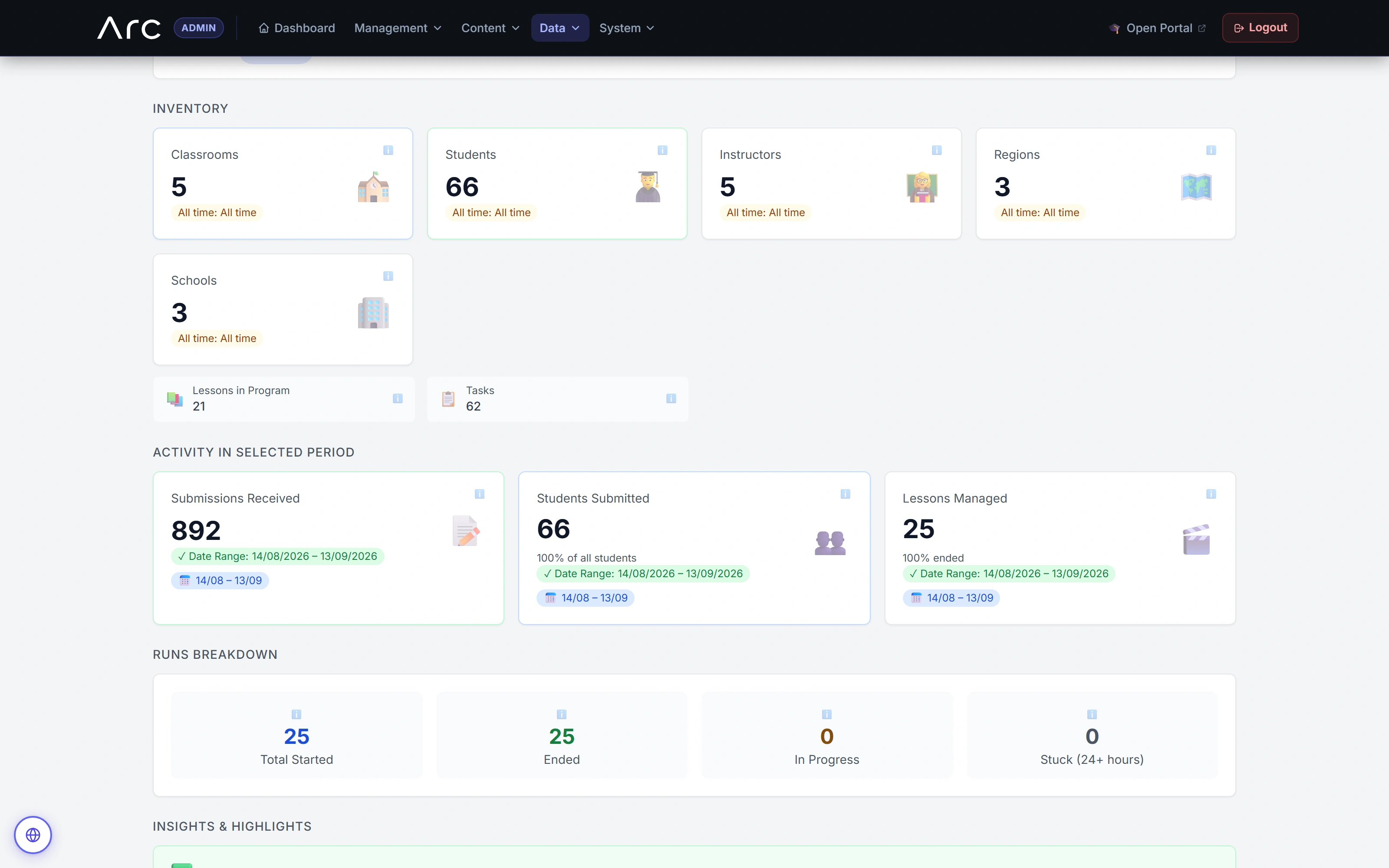
Inventory and activity, in context
The admin overview separates population inventory, period activity and lesson-run states.
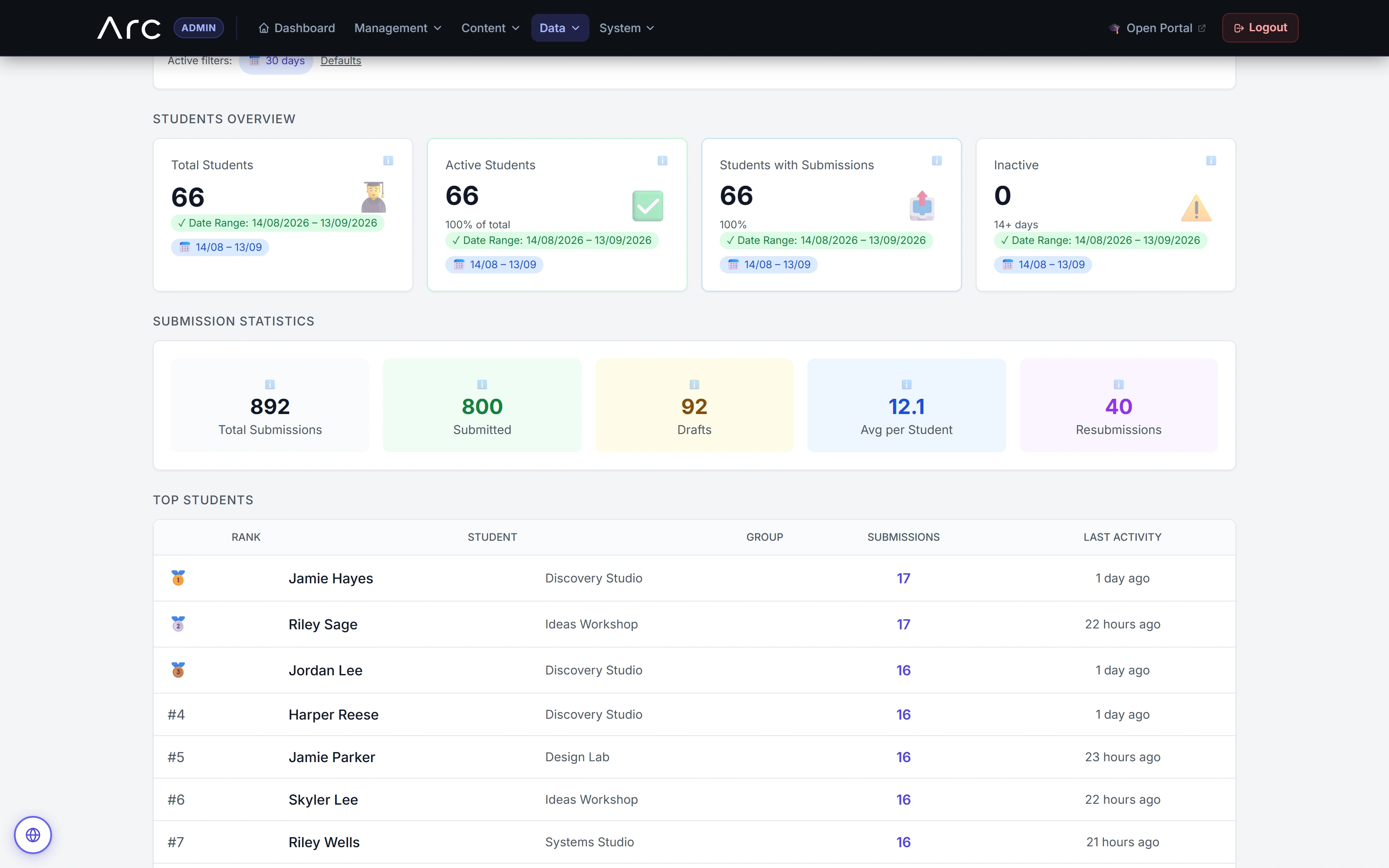
See participation and work separately
The native view distinguishes submitted versions, drafts and repeat submissions before listing learner activity.
Watch this workflow in Arc
The program behind the classroom.
Explore the original admin and scoped school analytics: inventory, nine friction lenses, an open calculation, modeled indices, a comparison gate and the work behind the numbers.
Read the walkthrough
- Inventory and activity
The original BI view separates all-time inventory from activity within the selected period. Every figure comes from fictional local fixtures.
- Nine friction lenses
Nine distinct lenses show different participation and workflow patterns. Labels and calculation controls remain visible in the original interface.
- Open the calculation
The native No-Show explanation opens. A close-up retains its formula, variables and concrete substitution: one qualifying run out of 25 gives 4%.
- Read modeled indices carefully
The 30-day modeled-index view includes five eligible peers. Its VRI calculation includes a fixed 0.8 assumption; these indices are not validated causal measurements of teaching quality.
- Respect the comparison gate
A separately loaded seven-day slice has no eligible peers. Arc retains absolute values and explicitly withholds a fair peer comparison; this differs from the 30-day view shown before it.
- Review queues and grade context
The scoped school analytics view displays review age, score distribution and a class-by-lesson grade matrix. A detail insert makes the matrix values readable.
- Follow lesson progression
Started, submitted and reviewed counts stay separate along the lesson sequence, followed by a weekly trend view. This is fictional history, not reported live program impact.
Source references & review notes
routes/platform/admin.phpapp/Platform/Portals/Admin/Controllers/AdminAnalyticsV2Controller.phpapp/Platform/Domain/Analytics/AnalyticsQueryService.php
Source reviewed at development revision 5549bf96. Original captures have their own pinned revisions; the live platform has a separate release.